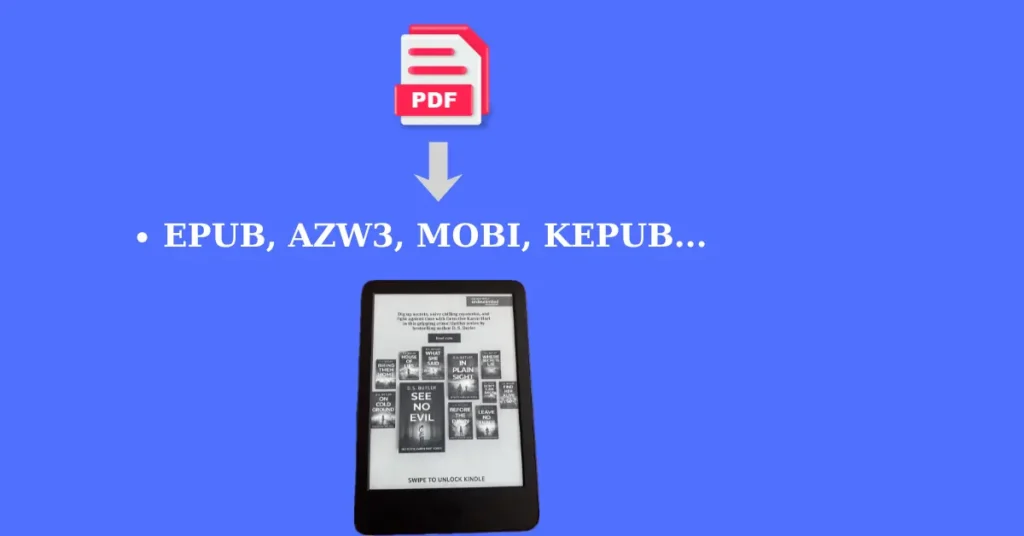
I know how frustrating it can be to have a PDF document or book that you want to read on your Kindle, but the pages don’t line up properly and the text is small, making the reading experience difficult. Many give up, but well, the solution is simpler than it seems and doesn’t take much time.
Read on in this article and you will learn how you can convert a PDF to Kindle-supported formats, such as EPUB, AZW3, MOBI, etc., using a free program on your computer/laptop or phone/tablet.
Table of Contents
Download the Calibre program
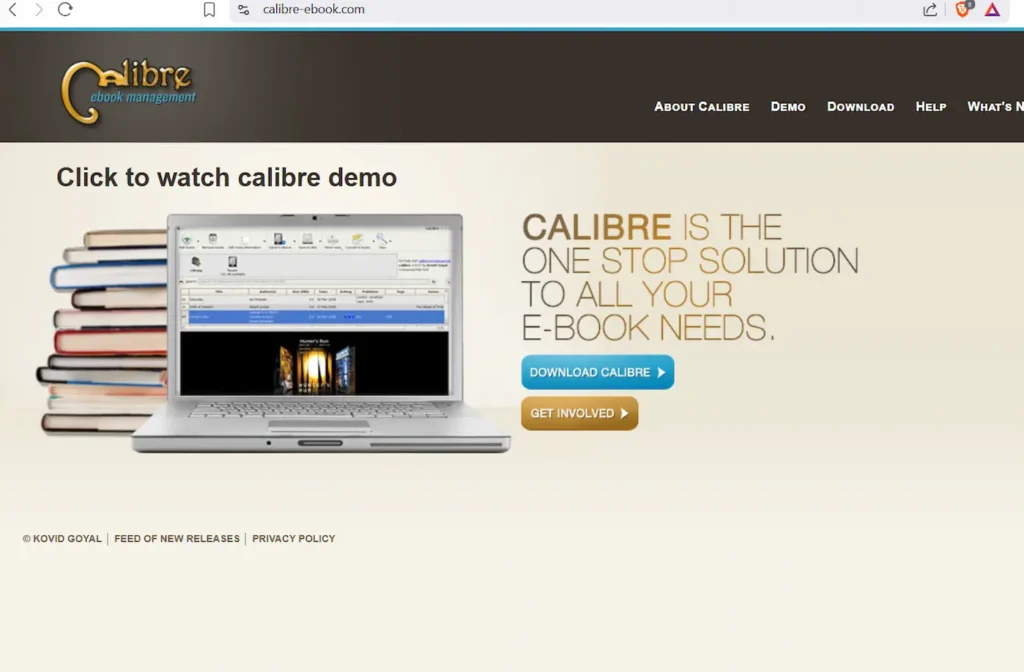
Calibre is a free book manager that can convert e-books without the hassle. If you’ve already downloaded the program, you can skip the download step! If not, see the steps!
Step 1
Search for Calibre on Google or click on the https://calibre-ebook.com/
Step 2
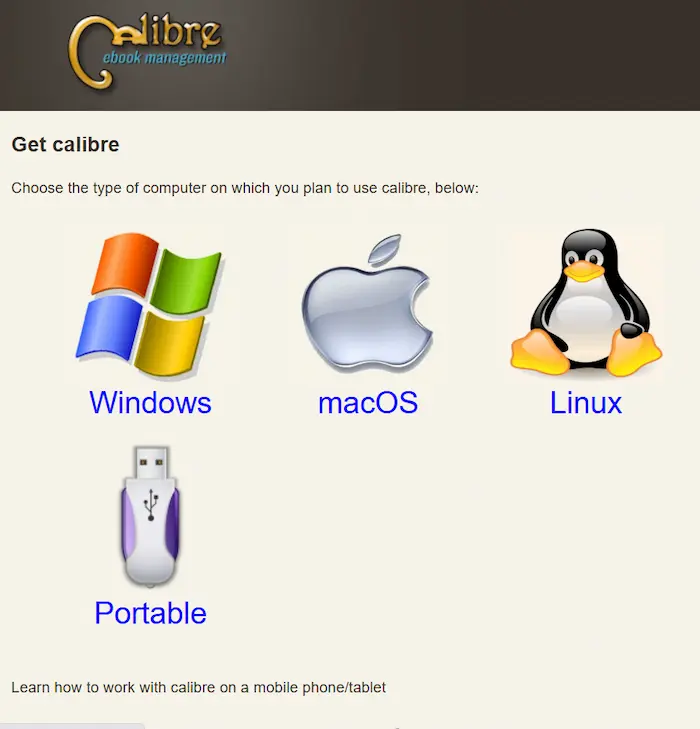
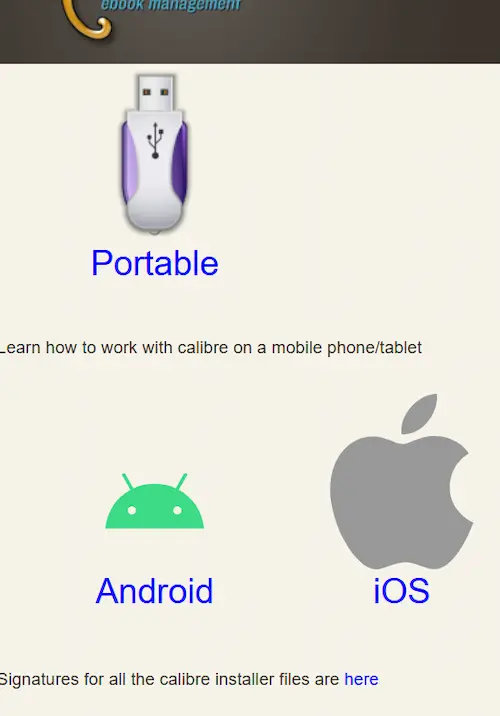
As soon as you reach the main page, in the upper right corner, click on Download and you will see several accessible options to download the program, such as: Windows, macOS, Linux, the Portable option for the computer, and for mobile the Android and iOS versions. Among all the options, choose one according to your needs. For example, I will choose Windows because it is the most used.
Step 3
If you want to download the program on Windows, after clicking on Windows, the text Download calibre 64bit will appear, click on it and then save it to your computer, following the model in the image as Windows Installer Package.
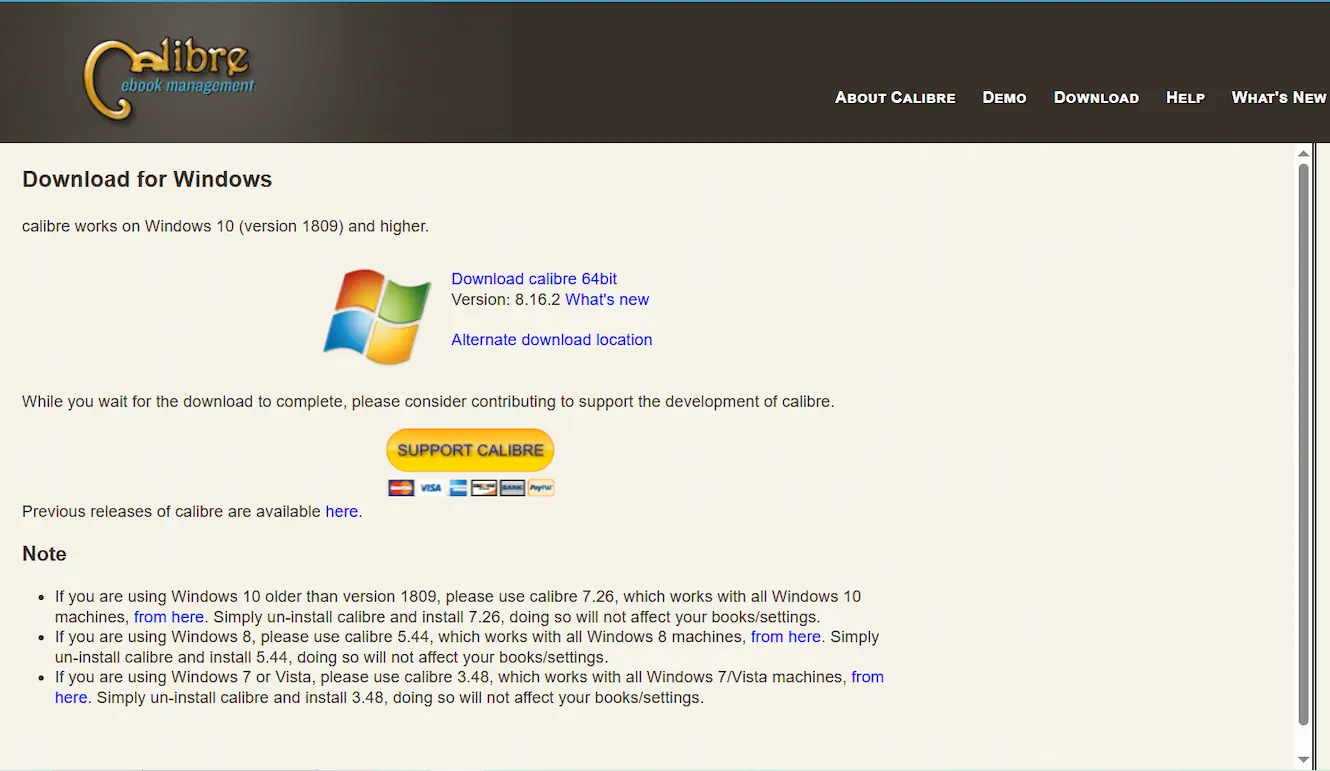
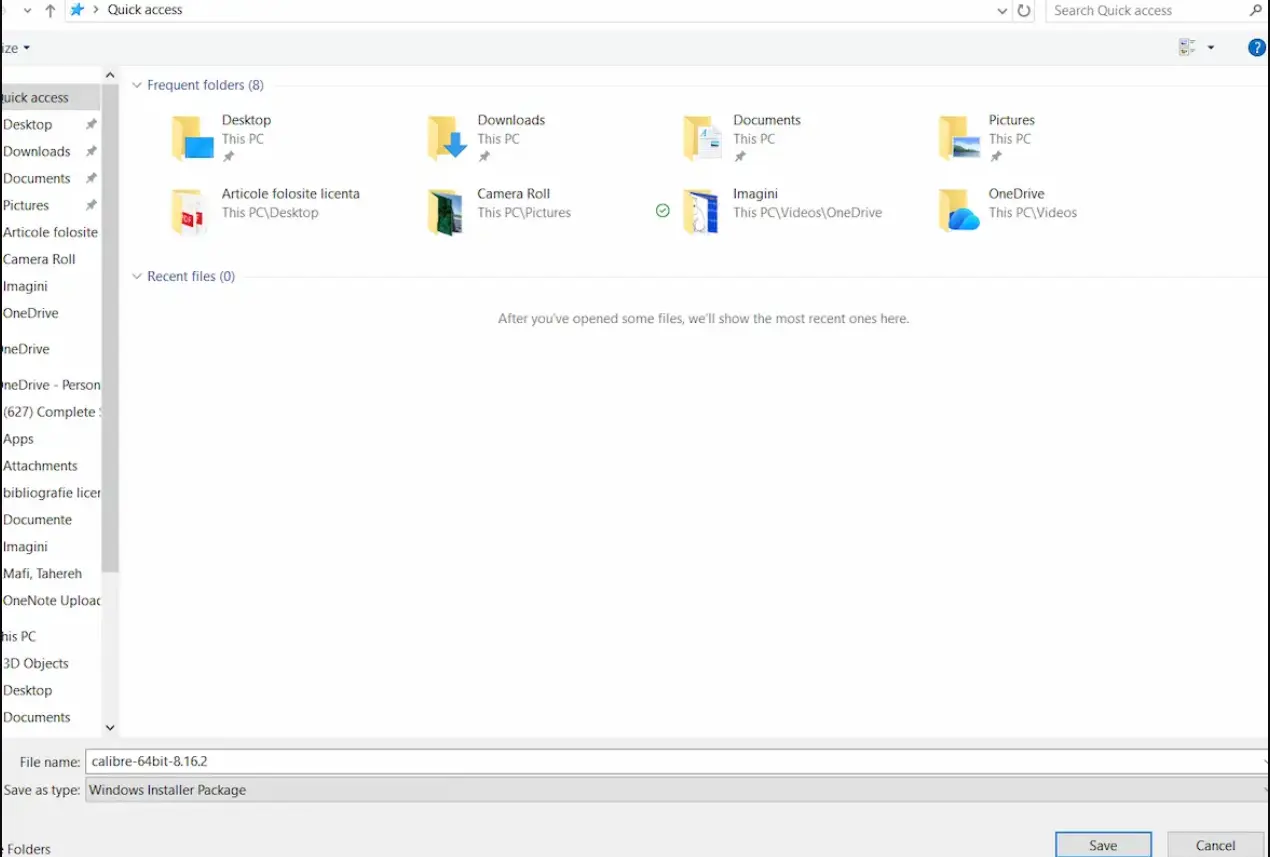
Depending on what type of Windows you have, you need to look in the files for the program you just downloaded. I found it in Downloads.
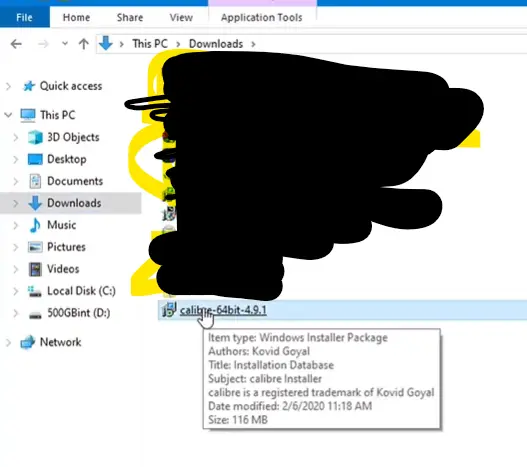
Click on the downloaded program and the License will appear, accept the terms and conditions, then click on Install. You will see that the program has loaded and you will click on Finish, to complete the whole process. After you have gone through all the steps, the program will appear as an icon on your desktop, exactly like in the image below.
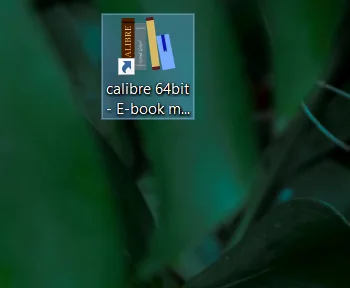
Click on the icon and you will have to configure the language, click next and you will have to choose the e-book. I have a Kindle Basic 2024 (but if you have another model, choose what you have), so on the left I choose Amazon, and on the right I click on the Devices section and choose Kindle Basic (all models).
If you click next, the message “Congratulations” will appear and you can click Finish. DONE!
The process of converting a PDF to Kindle formats
To convert a PDF book to Kindle format, you need to access the Calibre program and click on Add Books.
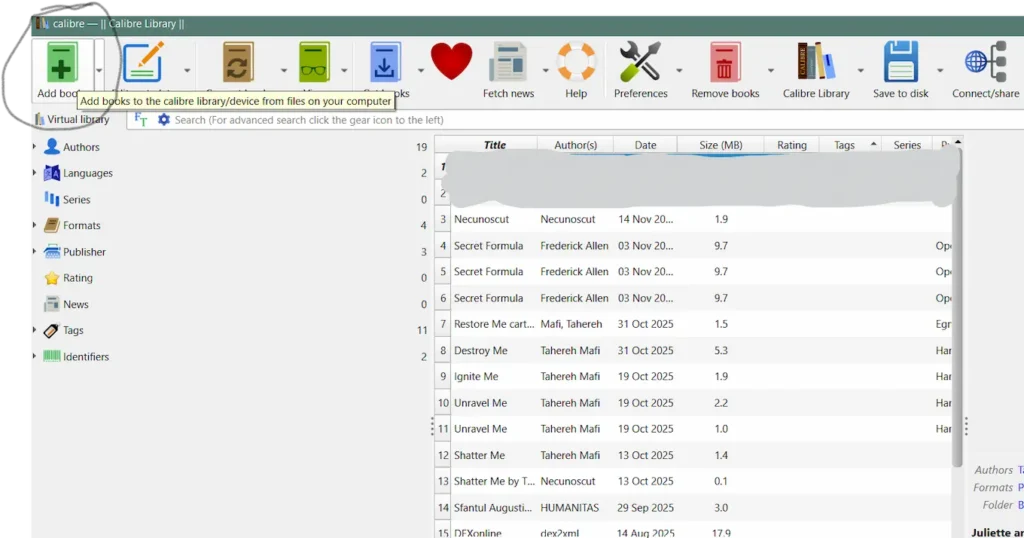
After you click Add books, your downloaded files will open and you can choose the PDF you need.
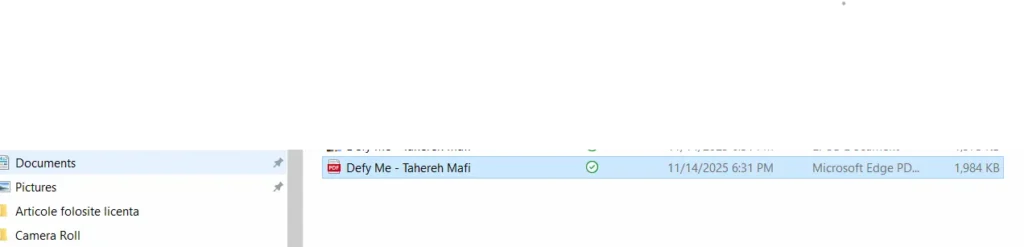
Click on PDF and the book will appear in the program only in PDF format, as in the image below.
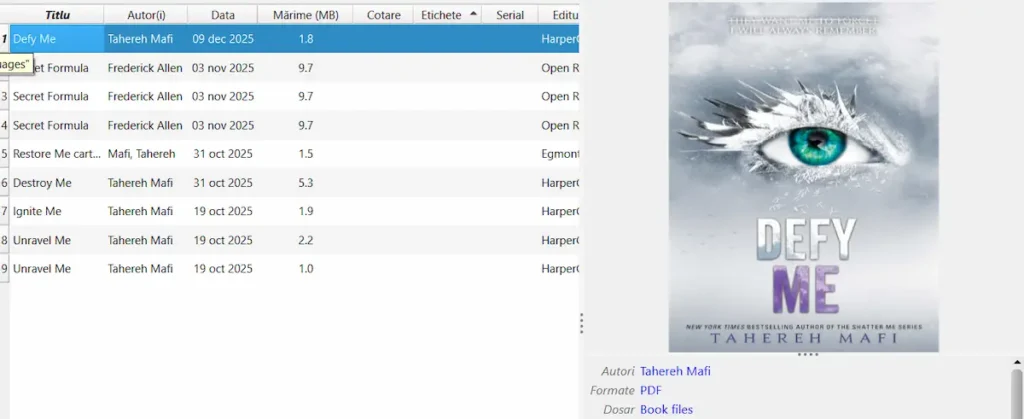
To convert the book from PDF to the format supported by your Kindle model, click on the book and then on Convert Books.
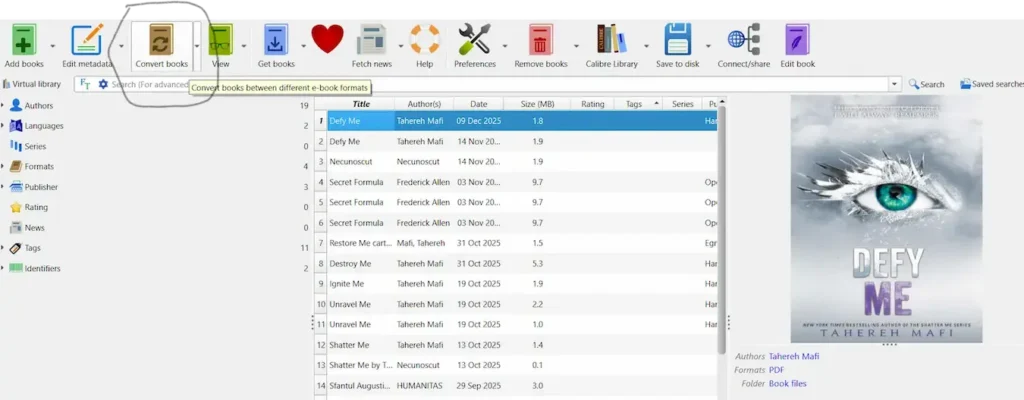
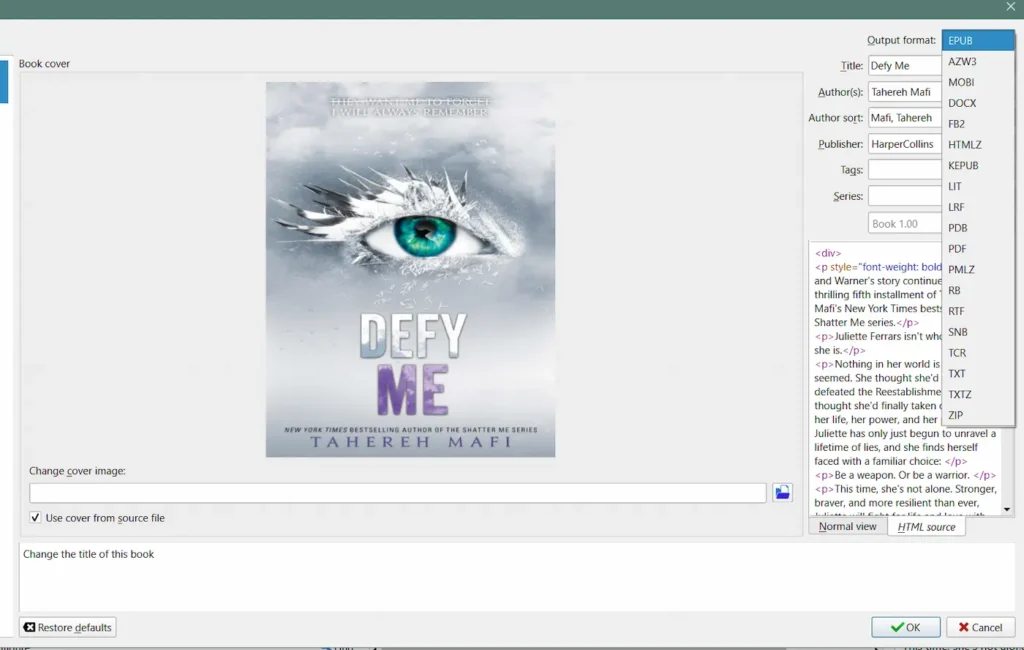
After you click on convert, the PDF book you added to the program will automatically appear, as shown in the example below. All you have to do is click on use cover from source file, then on HTML source and choose the format you need, then click save. I chose EPUB because I have a Kindle Basic, Generation 11, 2024 and this is the format that Amazon accepts for the model. If you have another old/new model, find out what format is suitable and if it can be accepted by Amazon, I will detail what this entails at the end.
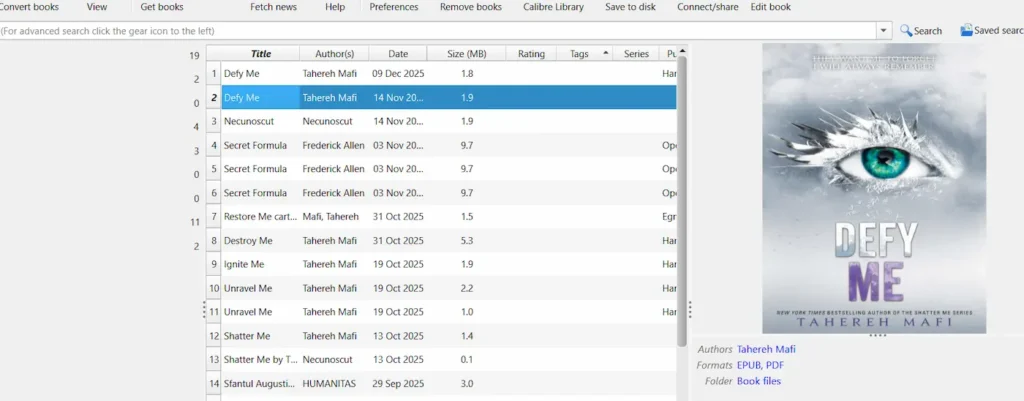
If you’ve followed all the steps, you’ll see that, on the right side after the cover, the book will appear in two formats, PDF and EPUB, in my case. In your case, it might be a different format.
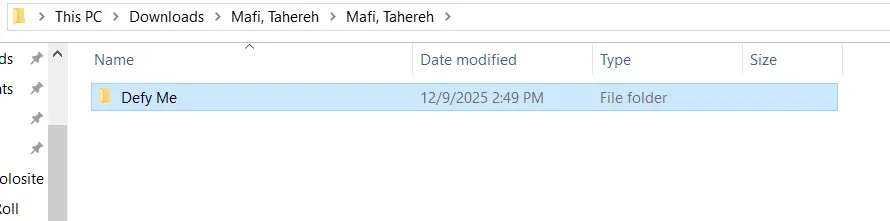
It will be saved on your computer in the files and you choose where to download it and which folder. I chose to download it to Downloads and I specially created a folder that I called Defy me.
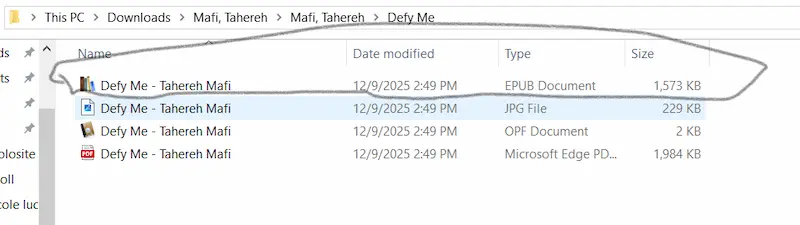
Click on the folder and your book will appear in several versions, choose the format you recently converted, in my case it’s EPUB.
Send the book in the new format
Now you can send the book in EPUB format on the website https://www.amazon.com/sendtokindle or by email. I send to the Amazon website because it is faster, as in the image below. However, to do this, you must have an account on Amazon and download the Kindle app on your phone to be able to sync the book.
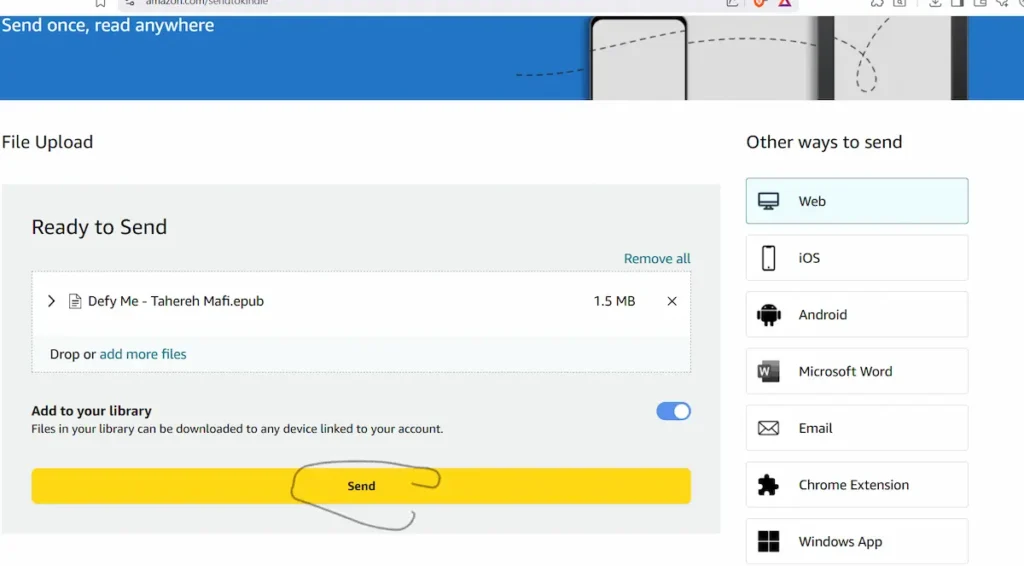
After you press send, the book will be automatically sent to your Kindle (you must create an Amazon account for Kindle to have it sent to your device).
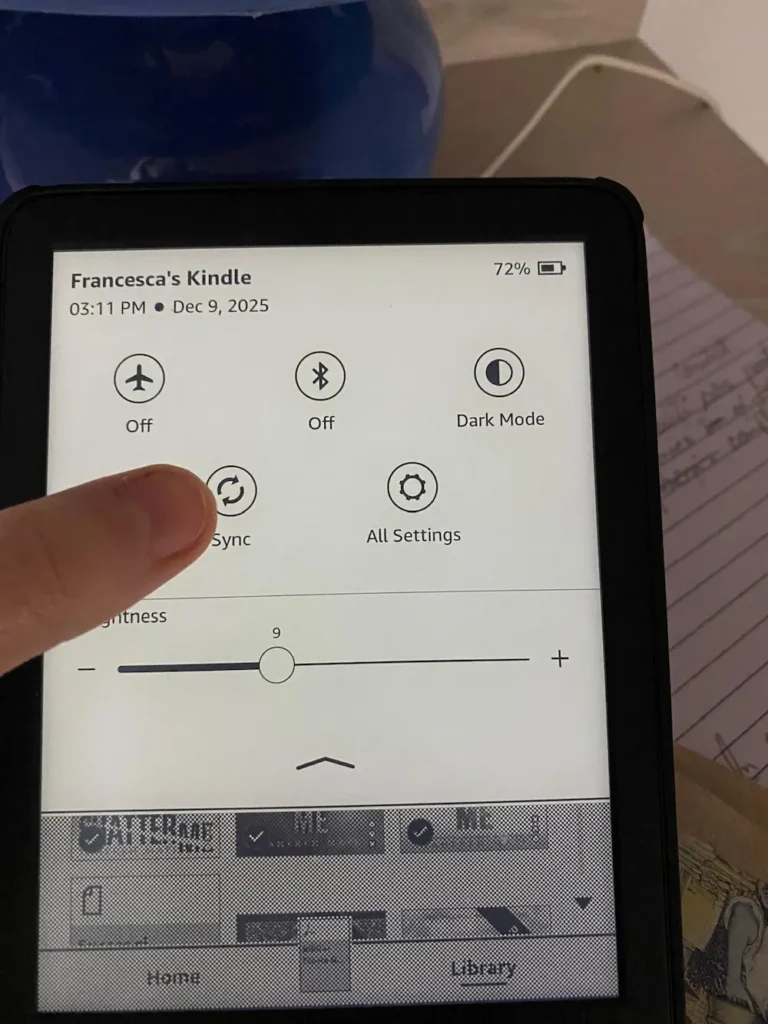
Open your Kindle and pull down the bar, then tap Sync, and the book will be saved to your Library section in a few seconds.
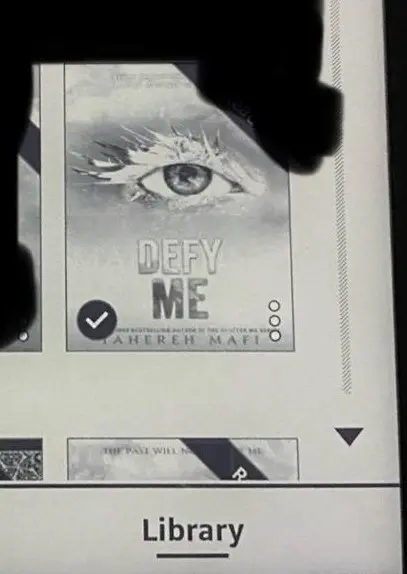
I hope I helped you convert a PDF for Kindle. This article is very detailed, and I hope you understood the steps.
Read the article too https://booksheart.com/en/top-9-kindle-benefits-you-should-know/

Follow me on