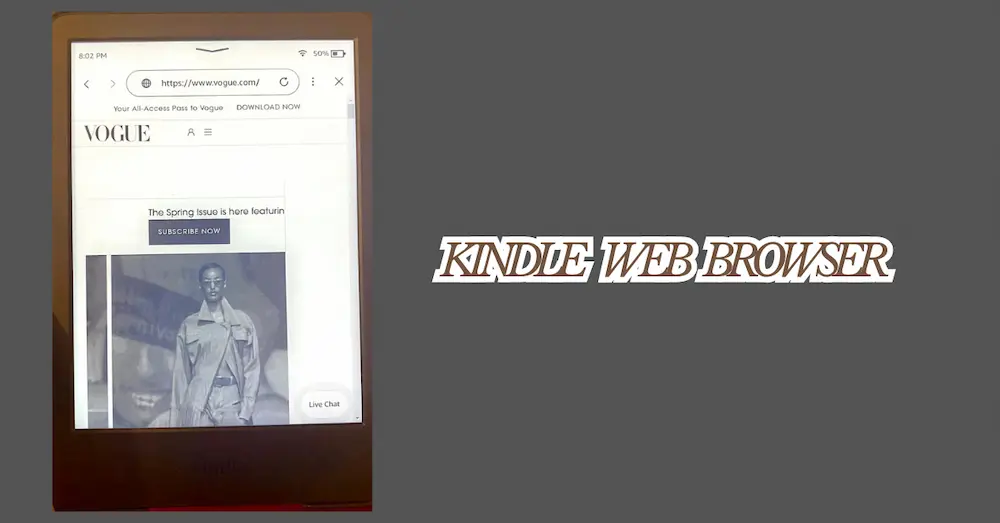
If you read ebooks, you know that Kindle is a device specially designed for reading without straining your eyes. It can be easily carried in your bag and can hold hundreds of books. Basically, it is like a portable mini-library. But, have you thought that this device can also be used to browse the internet?
Well, yes, Kindle devices offer you the ability to browse the internet using Amazon’s built-in experimental browser in 2026. However, in this guide, I provide essential information about the Kindle models that include it, the steps to access the web browser on your Kindle device, and what you can do with it.
About the experimental Web browser on Kindle
According to the Kindle 5 User Guide, which can be accessed at the link The Kindle Guide, it states that every Kindle comes with an experimental app, called the Standard Web Browser. This app has limitations, which means you can’t browse the internet in the same way you can on an Android tablet or iPad. I will explain the limitations throughout the article.
Do all current kindle models have a web browser in 2026?
Many current Kindle models (from the 2019–2026 period) feature an experimental web browser that allows for Google searches. However, this browser is designed for reading online articles and news—unlike the fully functional Chrome browser found on laptops, tablets or phones, which enables the search for any type of content, from videos to games, and so on.
Also, Amazon does not specify exactly which Kindle models feature this option. However, I can tell you that I tried browsing on my Basic Kindle (11th generation, 2024 model) and can confirm that it works.
Here are a few models that also feature a web browser:
| Models | Year | Web browser |
| Kindle Paperwhite, Basic and Oasis (10th generation) | 2019 | Yes |
| Kindle Paperwhite and Paperwhite Signature Edition (11th generation) | 2021 | Yes |
| Kindle Basic (11th Generation) and Kindle Scribe (1st Generation) | 2022 | Yes |
| Kindle Basic 2024 (11th Generation) | 2024 | Yes |
| Kindle Paperwhite and Paperwhite Signature Edition (12th Generation) | 2024 | Yes |
| Kindle Scribe | 2024 | Yes |
| Kindle Colorsoft | 2024 | Yes |
There are models older than 2019 that feature a web browser, so it is not just the current Oasis, Basic, Scribe, and Paperwhite models that have incorporated the experimental web browser. However, if you own an older model, it is worth checking whether you can browse the internet.
How can you get to the Web browser on Kindle?
To enter the web browser, first enter the Kindle bookstore (Home), and in the upper right corner, three vertical dots will appear.
There are several options outlined on page 73, Chapter 6 of the The Kindle Guide. However, I’m choosing to show the simplest steps and the method I use most often.
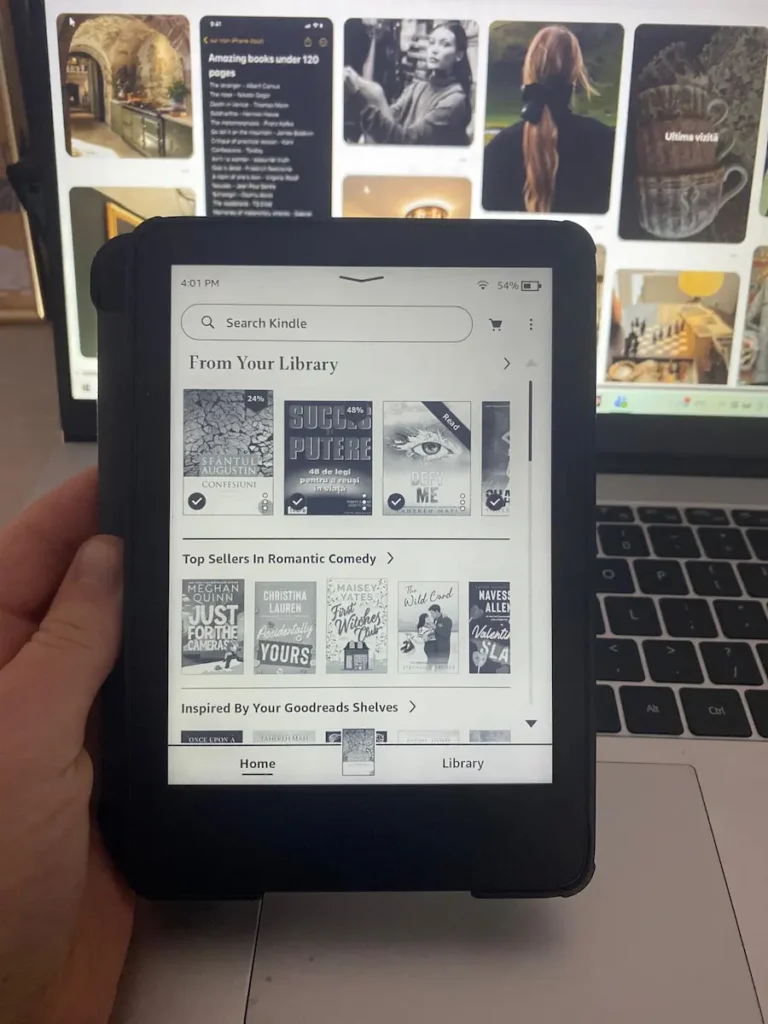
The first step
Click on the 3 dots and you will see more options, click on option 4, Web Browser, and you will be directed to Google or Chrome. See Step two and three.
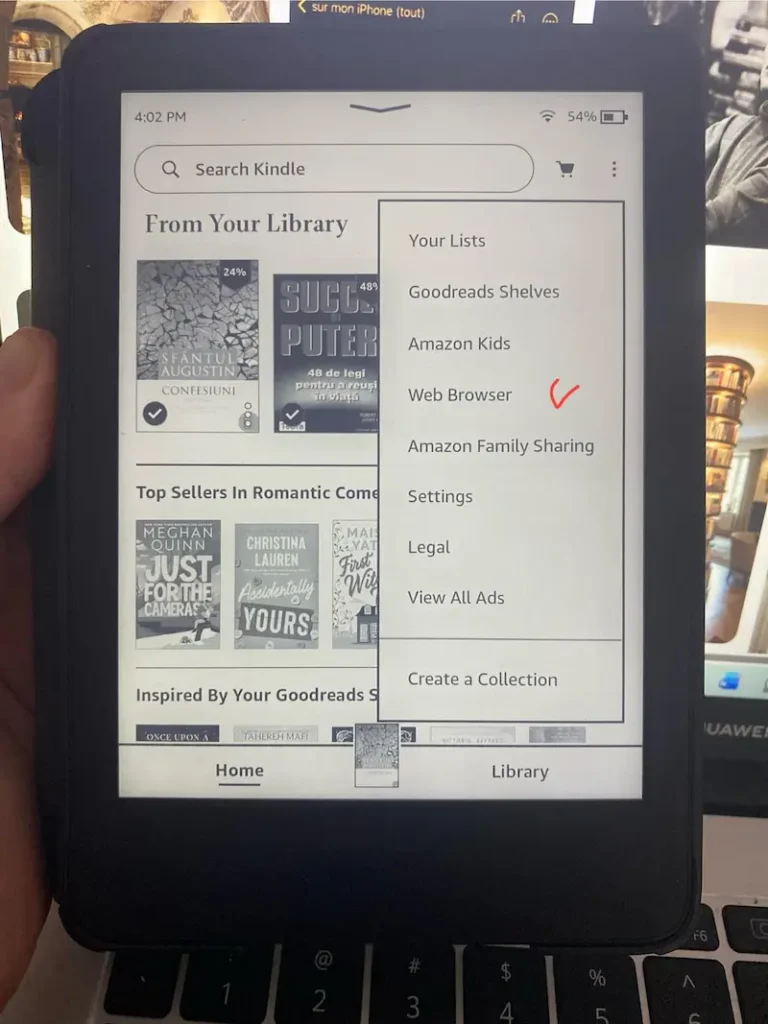
Step two
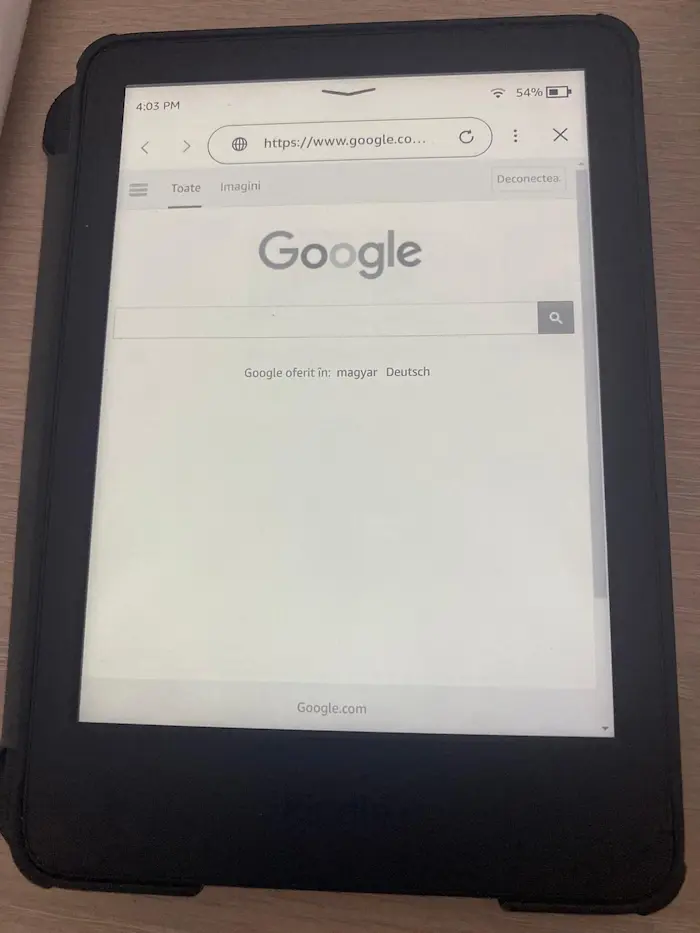
Step three
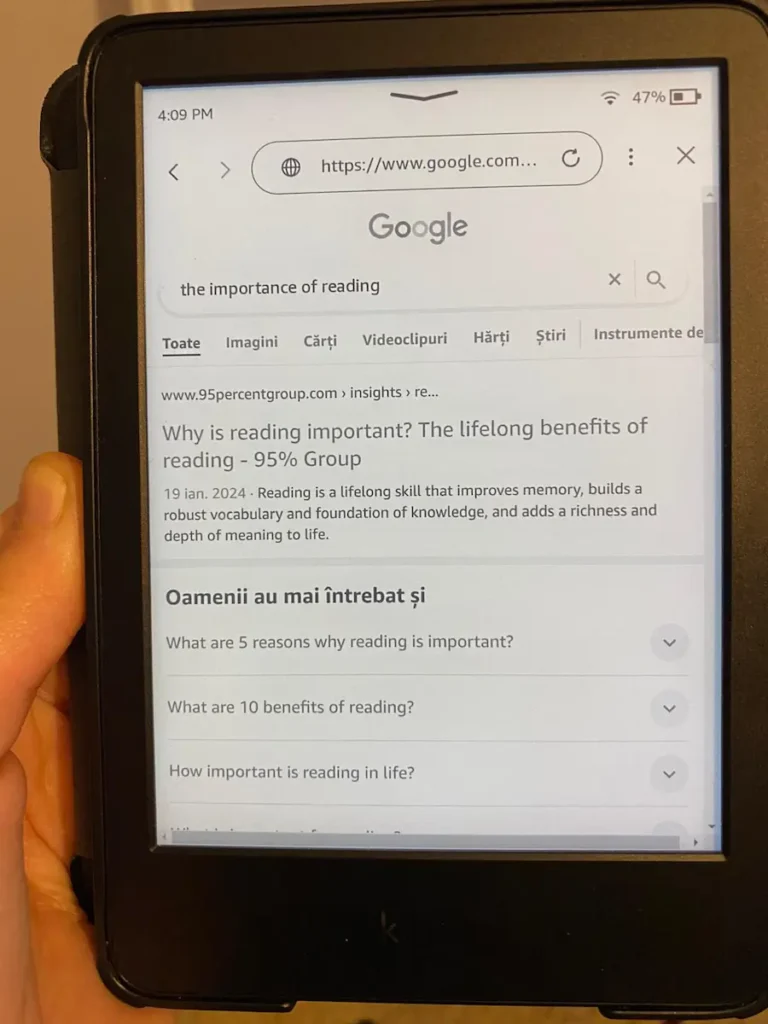
Now that you’re on Google, you can read online articles from blogs or publications, including Wikipedia. I searched for “about the importance of reading.” As you can see in the image below.
Step four
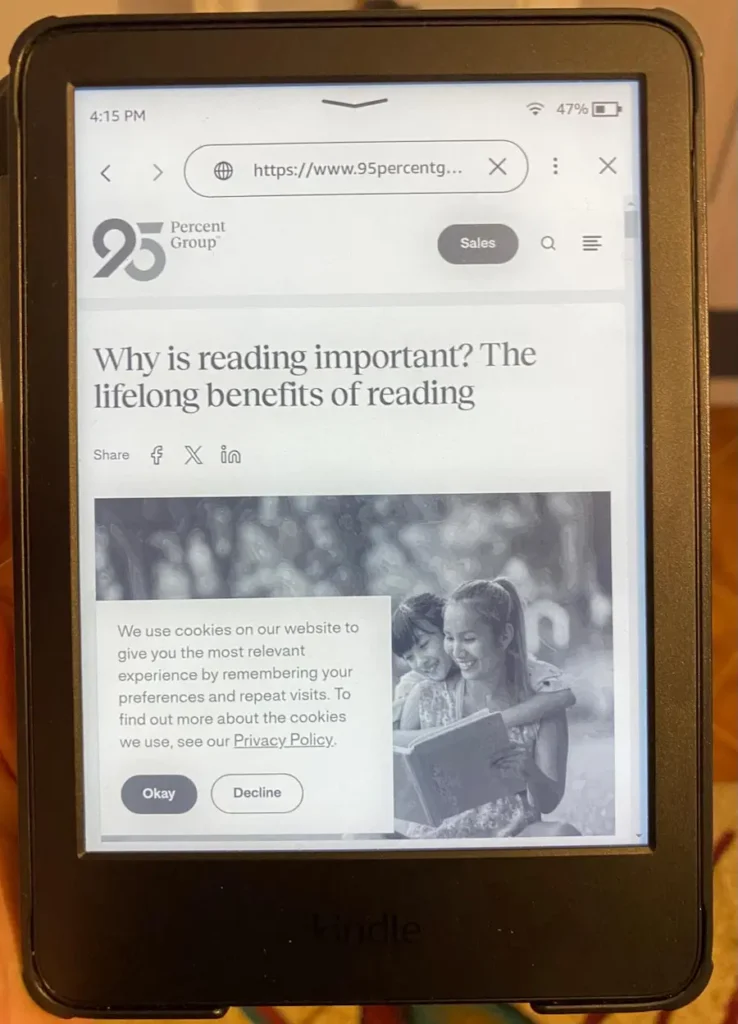
I chose an article from 95percentgroup.com, as can be seen in images 4 above and 5 below. In your case, you will choose what topic is interesting to you.
Step five
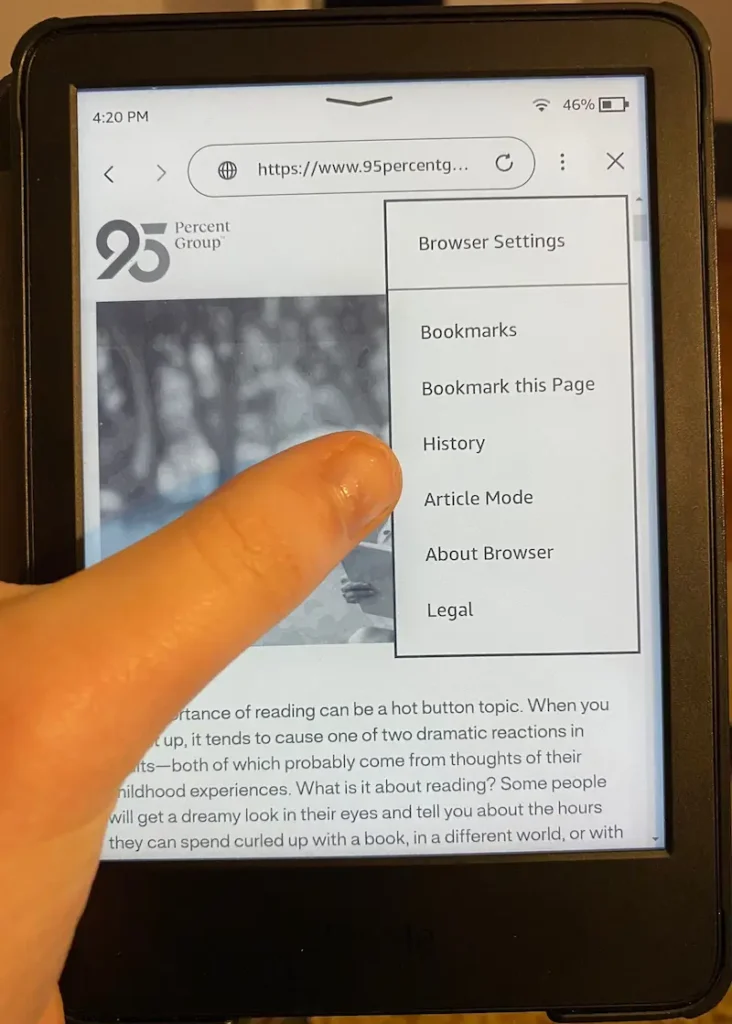
To make reading easier, for those who want to, Kindle also offers the Article Mode option, which helps to better focus on the text. To access it, you need to press the 3 dots positioned vertically, on the right side, and after History, you will find Article Mode.
Step six
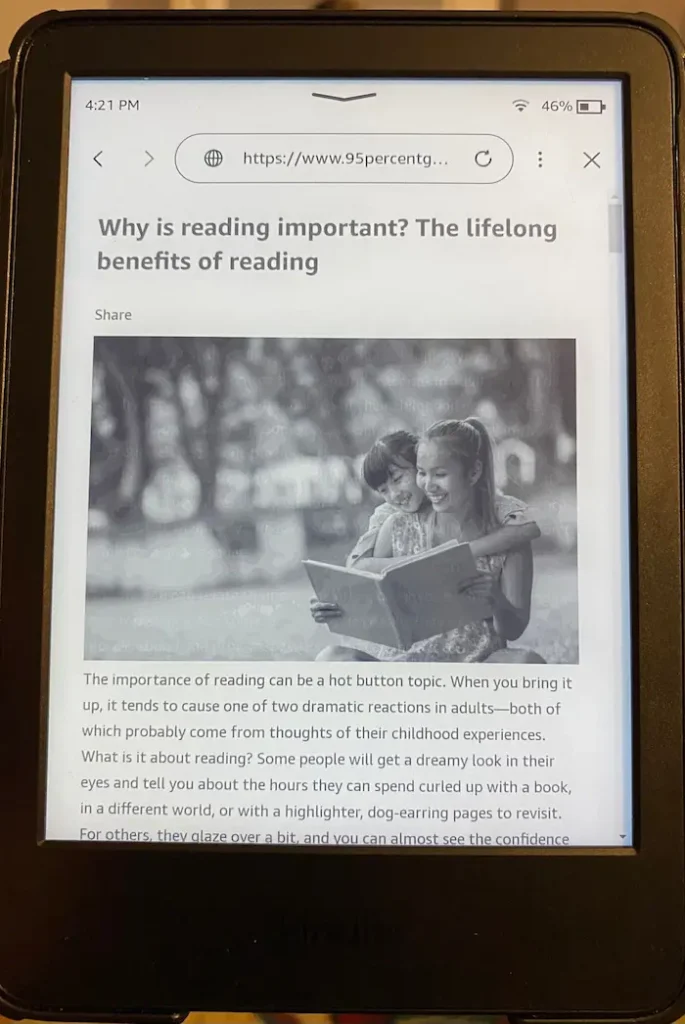
By clicking on Article Mode, the article will look like the image below (step seven). More concisely, unlike the representative image for step 5, the text in the article becomes more centered and easier to read.
Step seven
Save a web page or article to your Kindle
To save a page or article from a publication, you can use the Bookmarks option. This helps you save any information that is of interest to your Kindle device without having to type it into Google a second time.
To save the necessary materials, it’s very simple. You need to press the 3 vertically positioned dots again, and this option will appear.
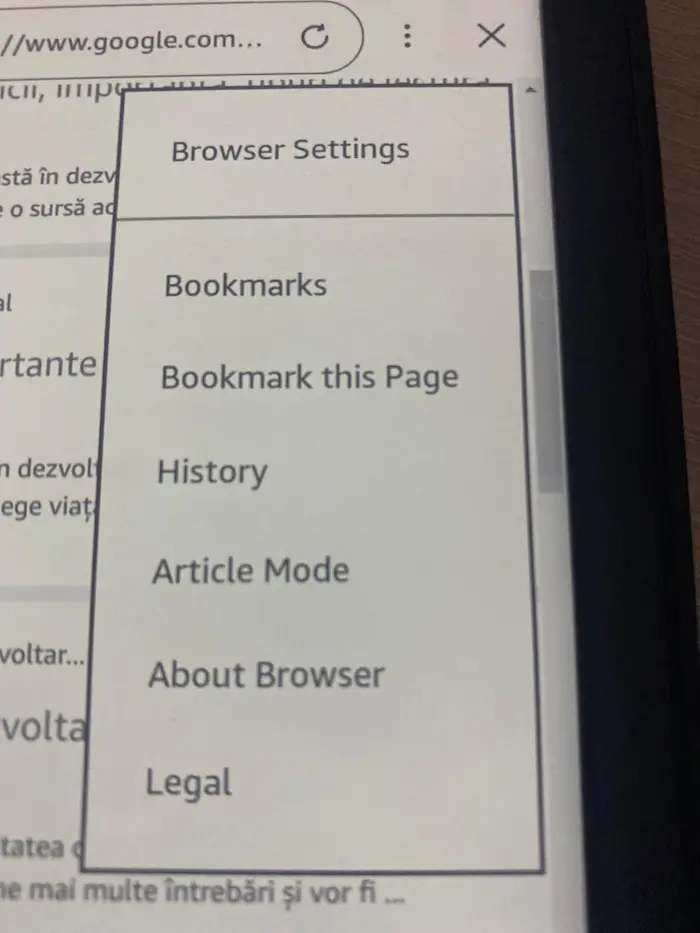
Step eight, optional
Notes about the Kindle Web Browser
- You can enlarge the screen (Zoom) by pressing in the same way as on a tablet
- Scrolling an article is slow
- Some documents/articles in AZW, AZW1, AZW2, AZW3, MOBI, and TXT formats can be downloaded, and Kindle will notify you when the download is complete.
What is the name of the Kindle web browser?
The web browser found on Kindle models is called Experimental Web Browser or simple, Web Browser.
What are the capabilities of the Kindle web browser?
You can access Google via the Kindle web browser by typing “google.com,” and then read online news and blog articles, access Wikipedia and Amazon, read books from Project Gutenberg, visit Open Library, Vogue, and e-commerce sites like Sephora and Chanel—or indeed any website.
What are the limitations of the Kindle web browser in 2026?
Among the web browser’s limitations is the inability to watch YouTube videos or access Facebook and Pinterest.
Conclusion
In conclusion, many current Kindle models feature a built-in web browser, but this is a secondary function and does not offer performance comparable to that of a browser on a smartphone, laptop, or tablet.
To learn how to download a PDF book and then send it to your Kindle device, also read how to convert a PDF to Kindle formats.

Follow me on