

Do you want to read English books on your Kindle and translate words into Romanian, but your Kindle doesn’t have a built-in English-Romanian dictionary? In this article, I’ll show you, step by step, how to add a free Romanian dictionary to Kindle. I’ve tried it myself, and it works!
I hope this guide helps you fix the translation issue. Let’s get started!
Table of Contents
Where do you download the dictionary from?
To download the dictionary, visit this link: https://eb.lv/. You will find several “WordNet 3 Infused” dictionaries there. Please note that the dictionaries on this site were created by Edgars Binans and are available for free; you are permitted to distribute the files in their original form, at no cost. Modifying or selling them is not permitted. All rights to the dictionary belong to its author, Edgars Binans.
Download document
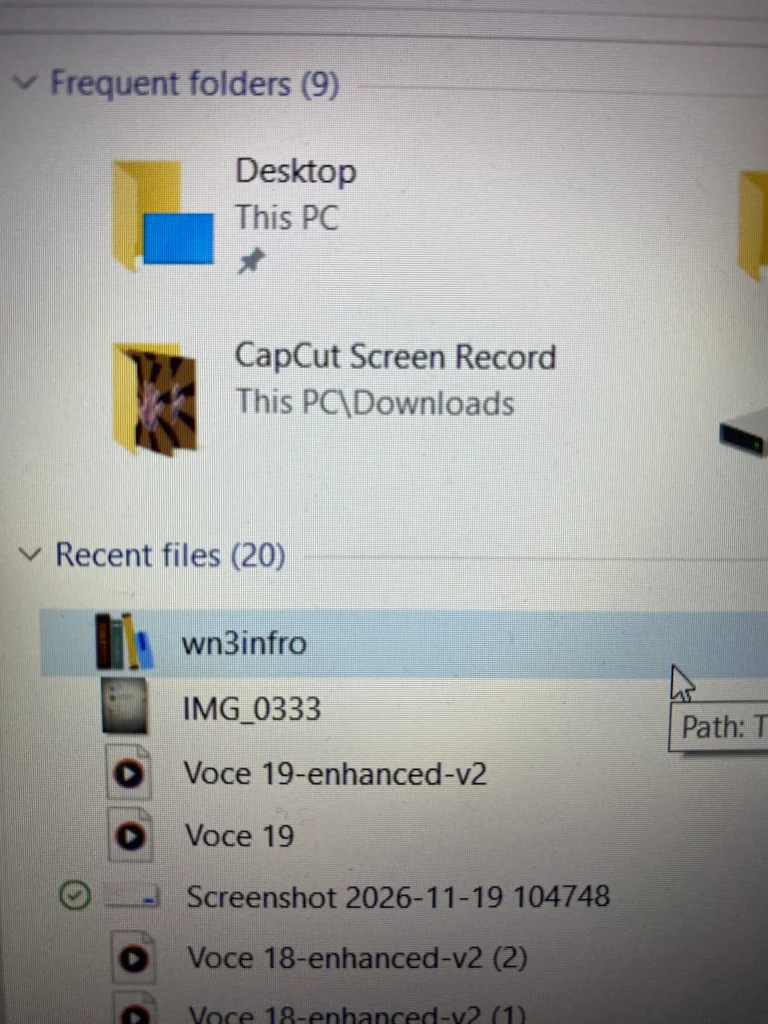
The dictionary will be downloaded in MOBI format and can be used on various devices, including newer Kindle models. I tested it on the 2024 basic Kindle model, but it may work on other models as well. Once downloaded, the document should appear in your files—as shown in the image below—under the name “wn3infro.”
Steps for adding a dictionary to a Kindle
To add content, you need:
- a laptop (Windows or Mac)
- a Kindle
- an original Kindle cable, which is also used for charging (newer models use USB-C).
Step 1
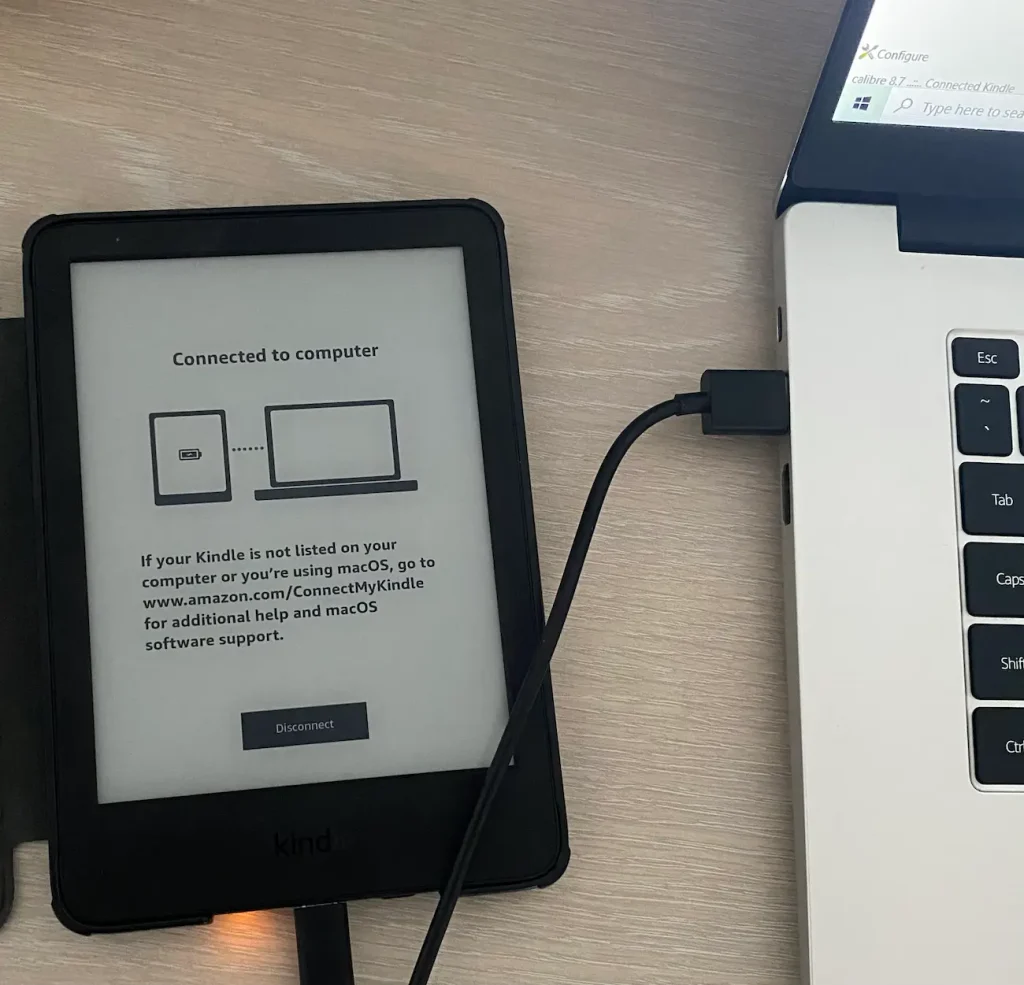
Connect the cable to the Kindle and the laptop. The message “Connected to computer” will appear on the Kindle, as shown in the image below.
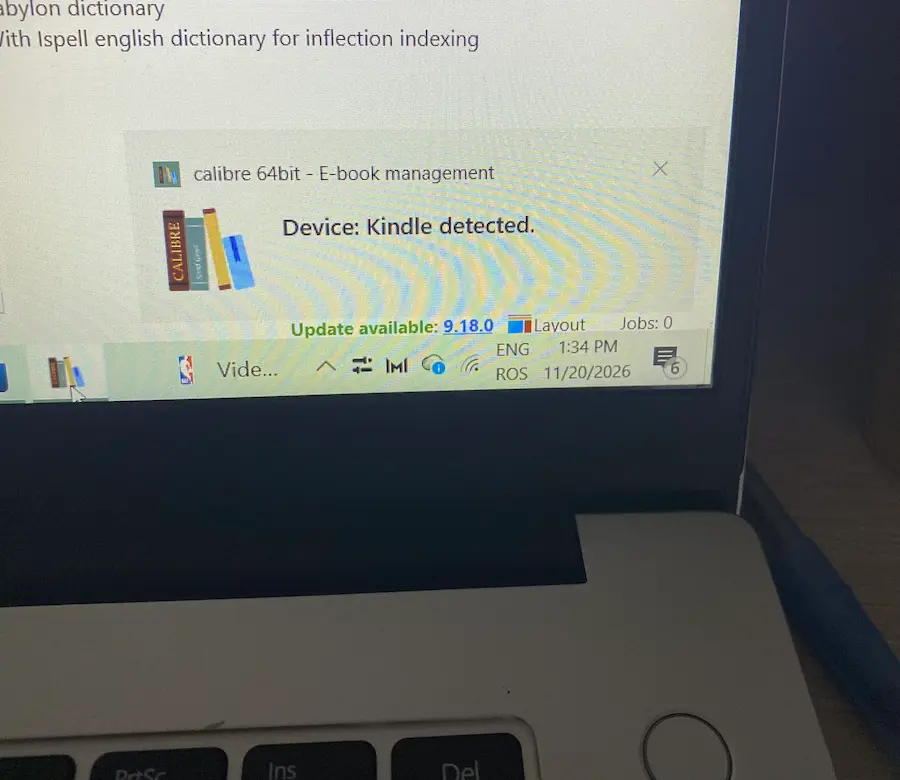
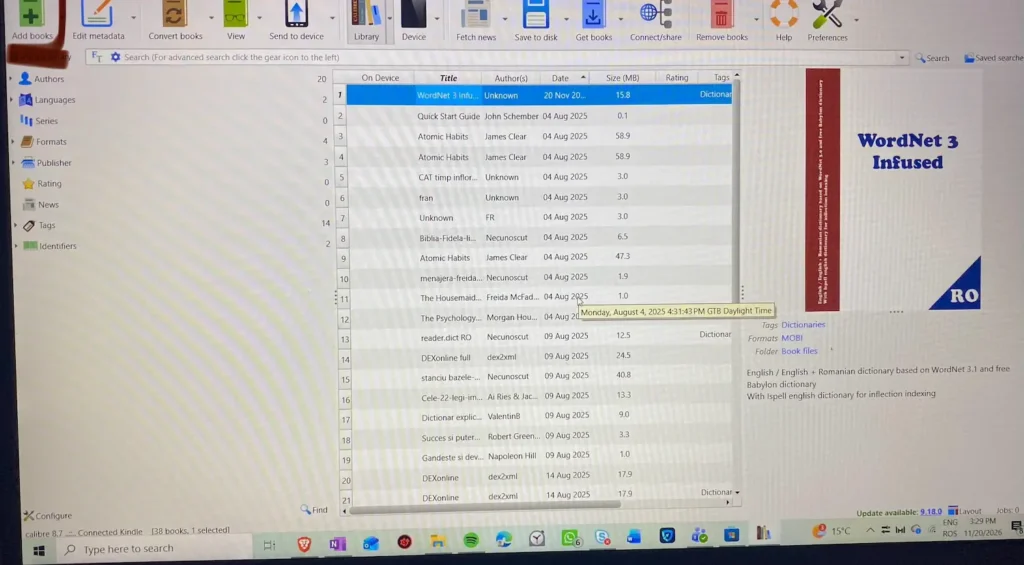
Optional! If you have the Calibre software and would like to see what the dictionary looks like, you can open the program while your Kindle is connected to your laptop; you will then see the message “Kindle detected,” as shown in Image 1. You can then add the downloaded file to Calibre to view the dictionary’s cover, as shown in Image 2.
Note! If you would like to learn more about the Calibre program and how to convert a book from PDF to formats such as EPUB, MOBI, etc., read the article How to convert a PDF to Kindle formats using Calibre.
Step 2
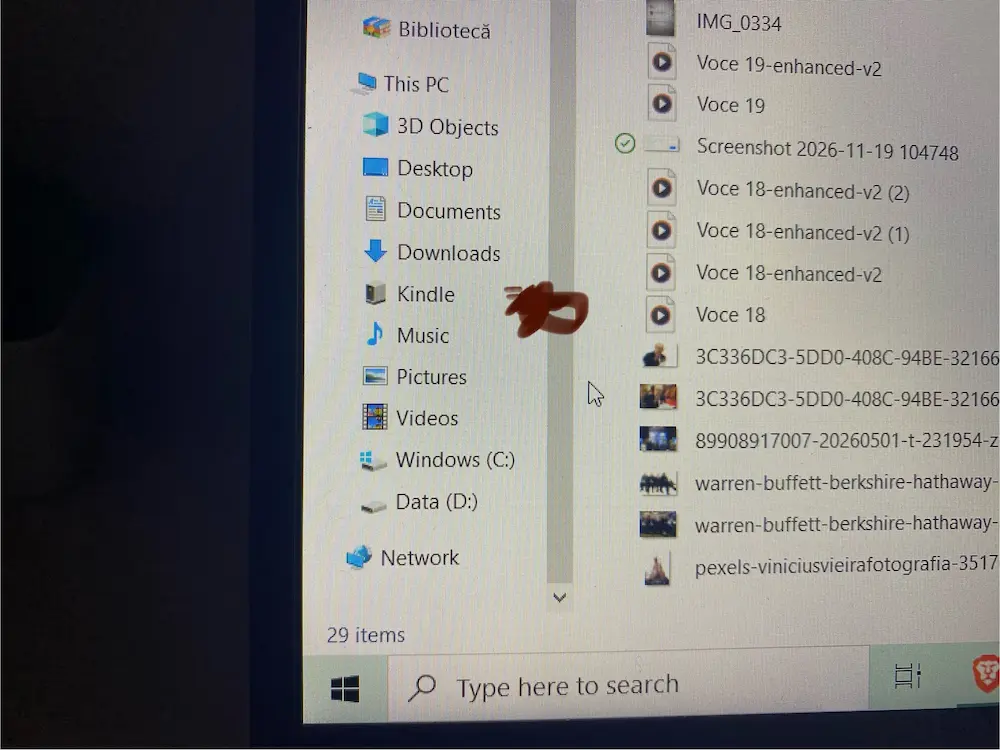
As soon as you see the message “Connected to computer,” open your files (File Explorer on Windows or Finder on Mac)—I use Windows, so I opened File Explorer. Look for “Kindle” further down.
Step 3
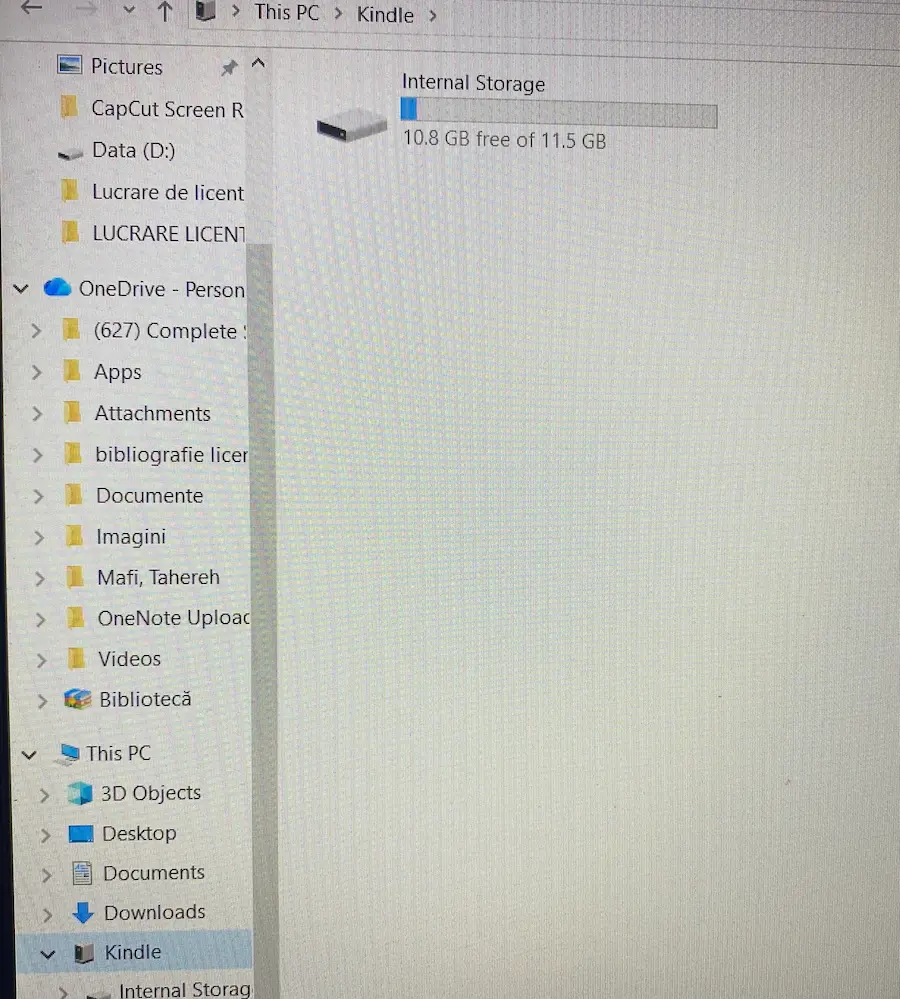
Click on Kindle, and Internal Storage will appear.
Step 4
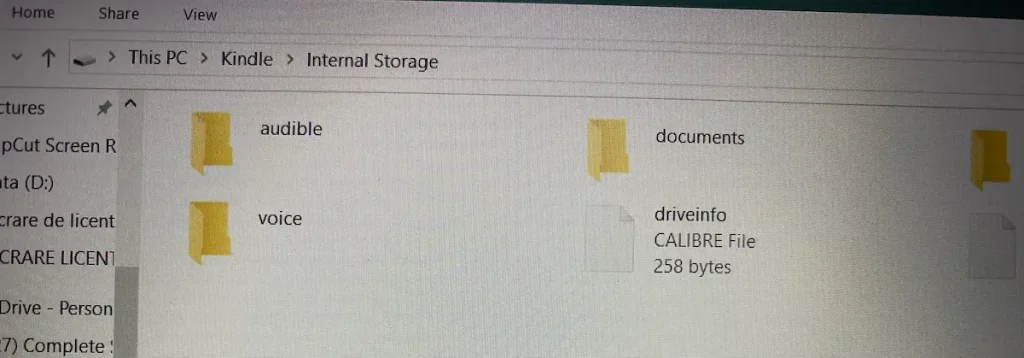
Click on “Internal Storage,” and several files will appear, including one labeled “documents” (Image 1).
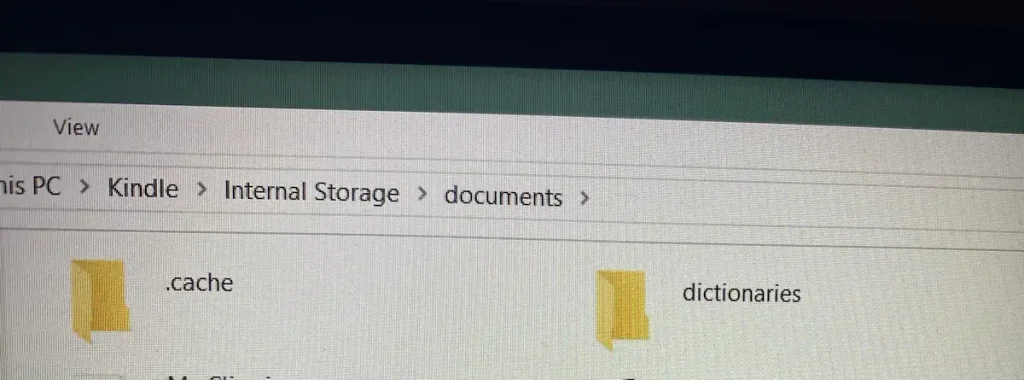
Click on “Documents” to reveal further files, such as “cache,” “dictionaries,” “downloads,” and others (Image 2).
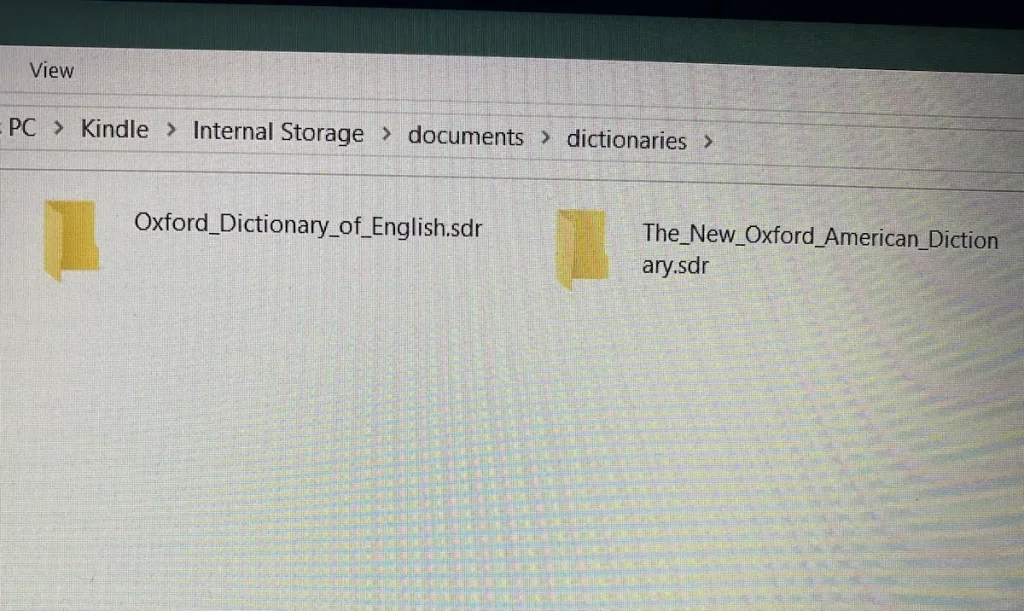
Click on “dictionaries” to see the dictionaries currently on your Kindle (Image 3).
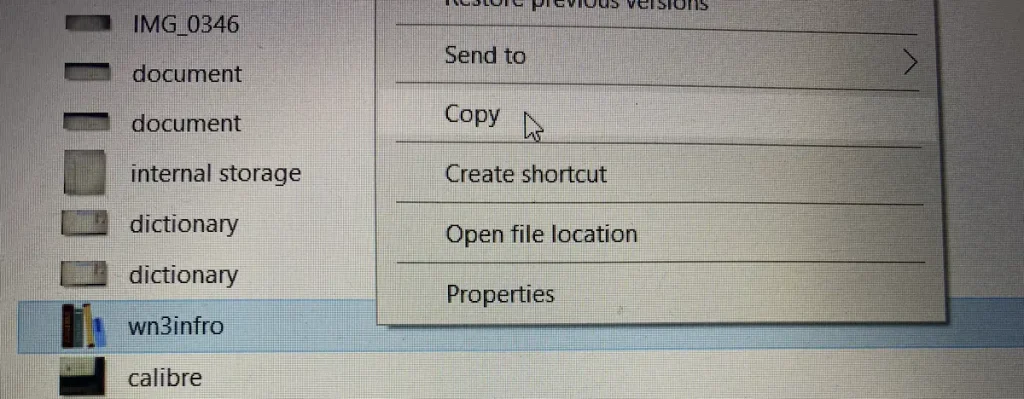
To add the English-Romanian dictionary, right-click on the downloaded file “wn3infro” and select “copy” (Image 4).
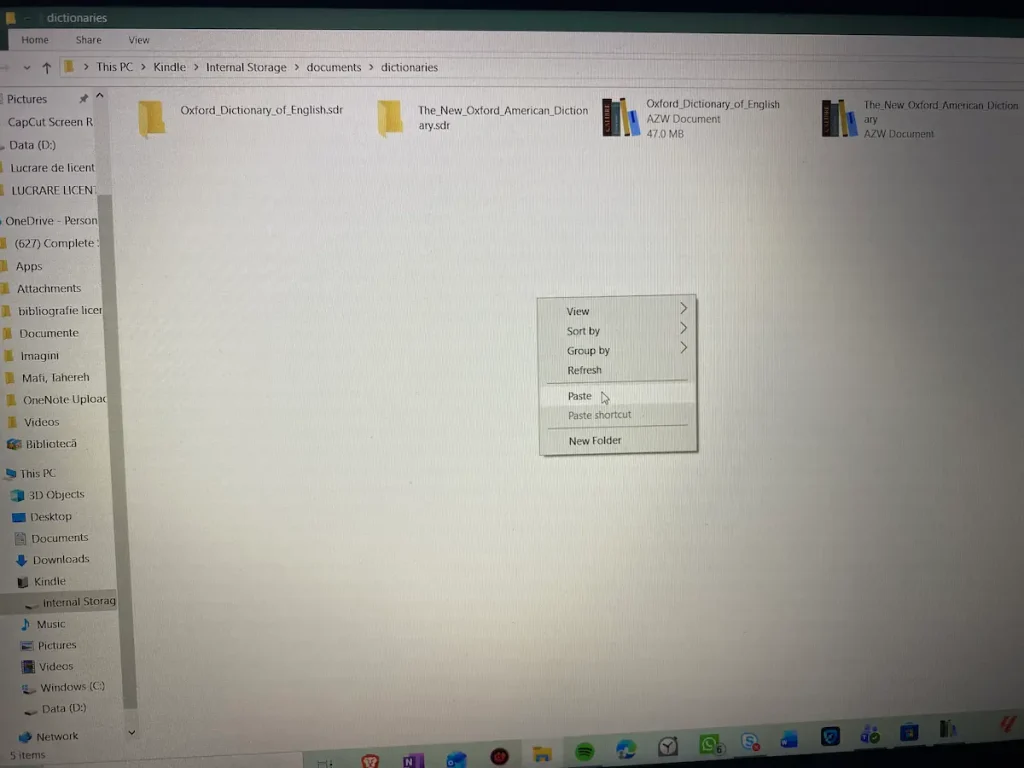
Then, go back to the “dictionaries” folder and select “paste” (Image 5).
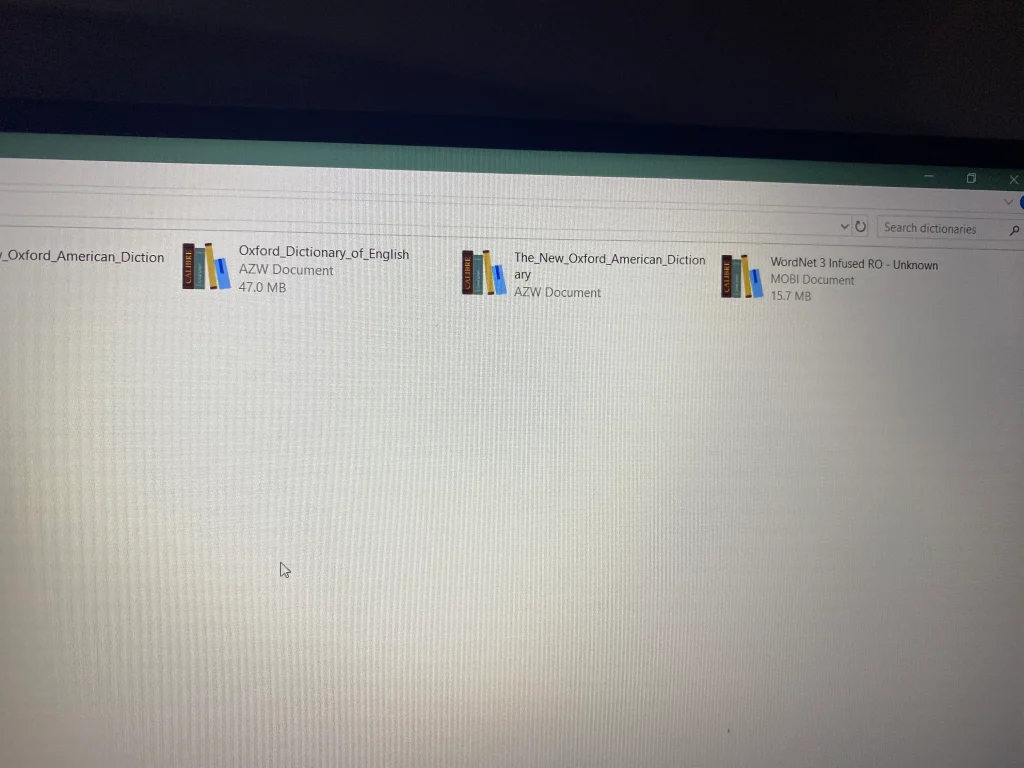
The “WordNet Infused 3 RO – Unknown” dictionary will then appear (Image 6).
Step 5
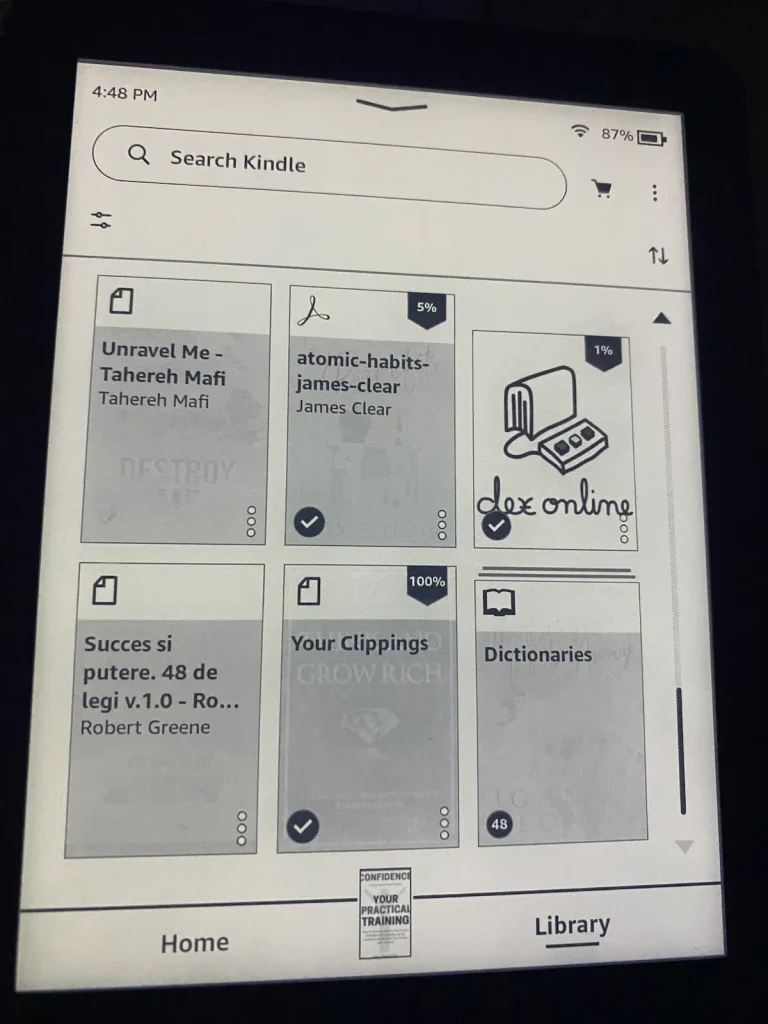
Disconnect the cable and check if the dictionary appears on your Kindle. To do this, open your Kindle and look for “Dictionaries” in the Library section (Image 1).
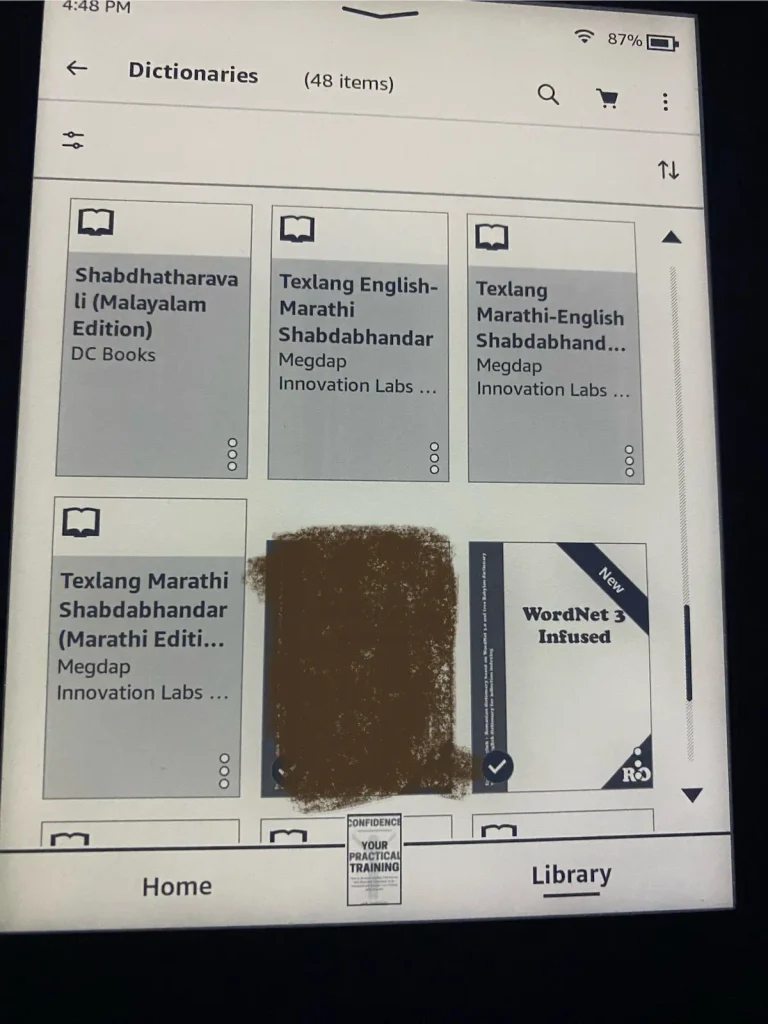
Click on Dictionaries and check whether the new WordNet 3 Infused RO dictionary appears (Image 2).
Step 6
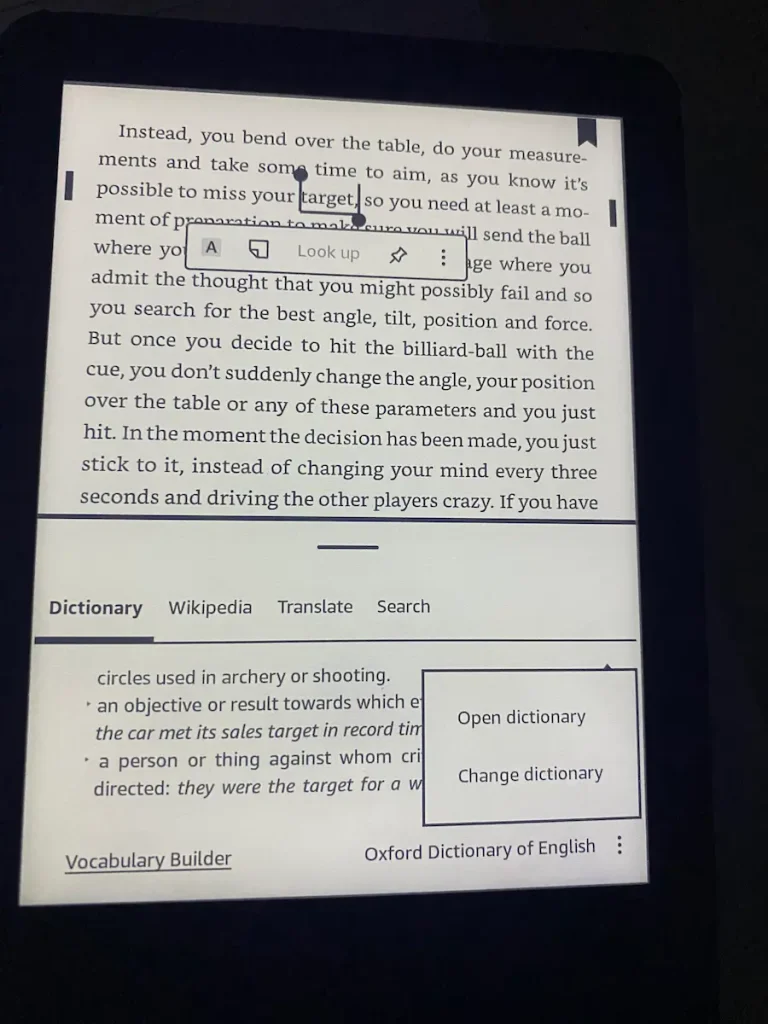
Open a book in English, long-press a word of your choice, and then select “dictionary.” Since the Kindle comes with a built-in English dictionary, the translation will be in English. To switch from the English dictionary to the English-Romanian dictionary, tap the three vertical dots and select “change dictionary” (Image 3).
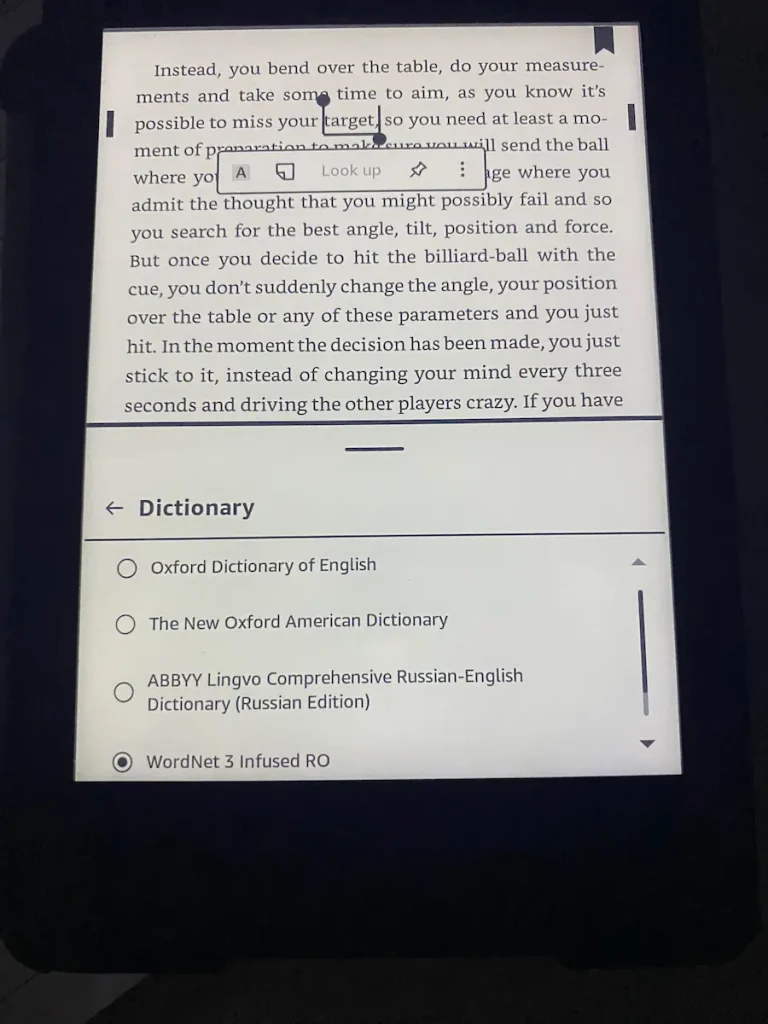
After clicking on “Change dictionary,” the new “WordNet 3 Infused RO” dictionary will appear. Select it (Image 4)!
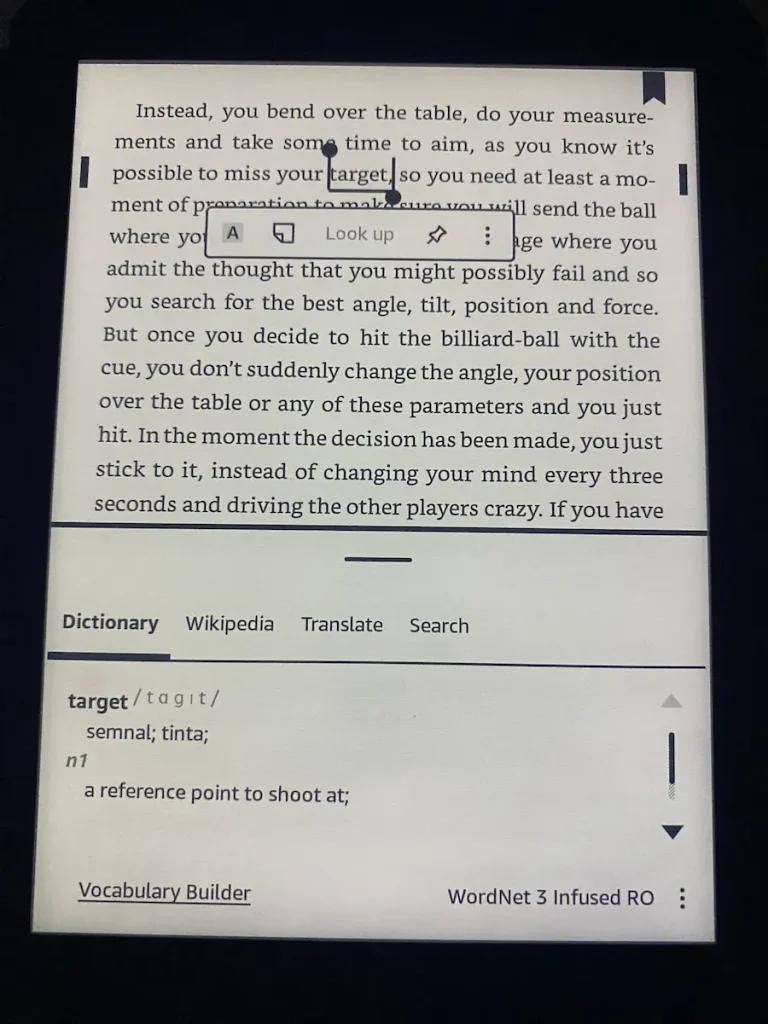
Go back to the page and select the word you want to translate from English to Romanian. You will then see the translation. For example, for the word “target,” the translations are “semnal” or “țintă,” as shown in image 5.
Coclusion
Now you can enjoy an accurate translation of the books you read. This guide is especially perfect for Kindle users who want to learn English. I hope you found this guide useful; if so, please share your thoughts on the article in the comments. For more interesting information, be sure to subscribe to the newsletter as well.