
Do you have a Kindle but don’t know how to get a book from your phone? Or have you tried following tutorials and still can’t figure it out?
In this article, I’ll show you step by step all the ways to download, buy, and add books to your Kindle from another device, without much effort.
Download books directly from your Kindle device
There are many ways to get books on Kindle. You can choose between free and paid options. I will explain all the possibilities.
One of the most common methods is purchasing a book directly from your Kindle device. It’s one of the easiest ways, because the download is fast and you can pay online. Besides that, I will also show you how to download free books, so stay tuned.
Keep in mind that Kindle books are usually much cheaper than paperbacks, which is one of the main advantages of owning a Kindle. If you’re interested in learning more about its benefits, check out my article: Top 9 Kindle Benefits you should Know.
Now, coming back to our topic:
How can i get books on a Kindle?
To add books to your Kindle device, you need to open it, then choose the book from the Search Kindle menu, go to it and press the Buy now button, then enter the card details.
Below you have examples.
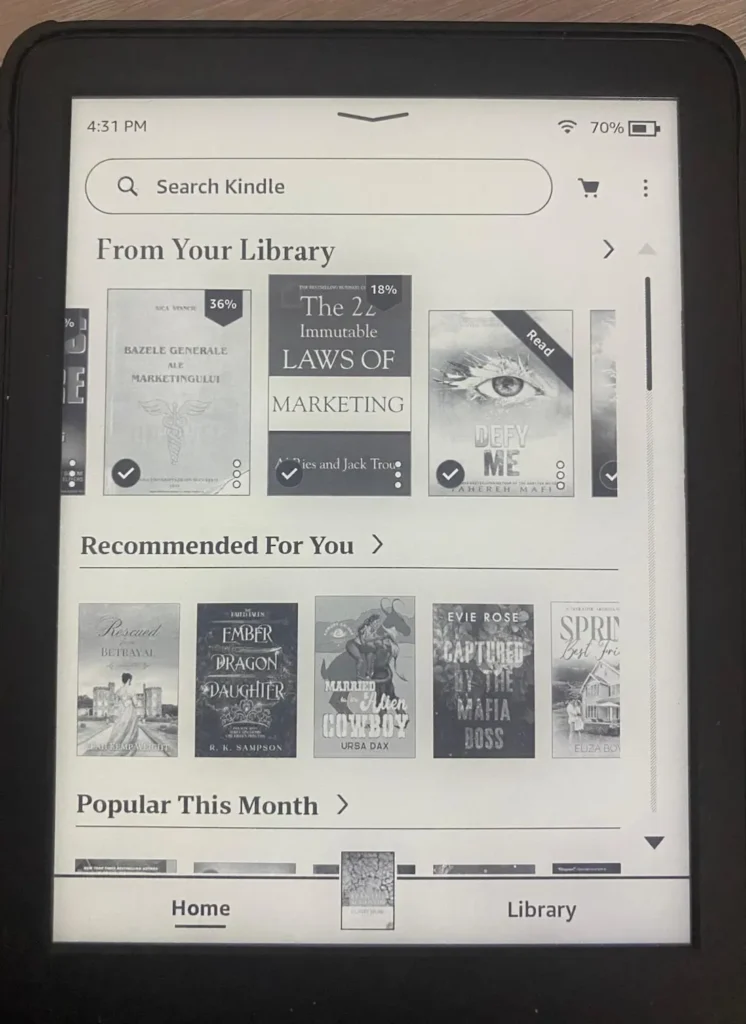
Step 1. Open your Kindle, and the Search Kindle bar will appear on your Home screen.
Click on it and search for books or type in the book you want.
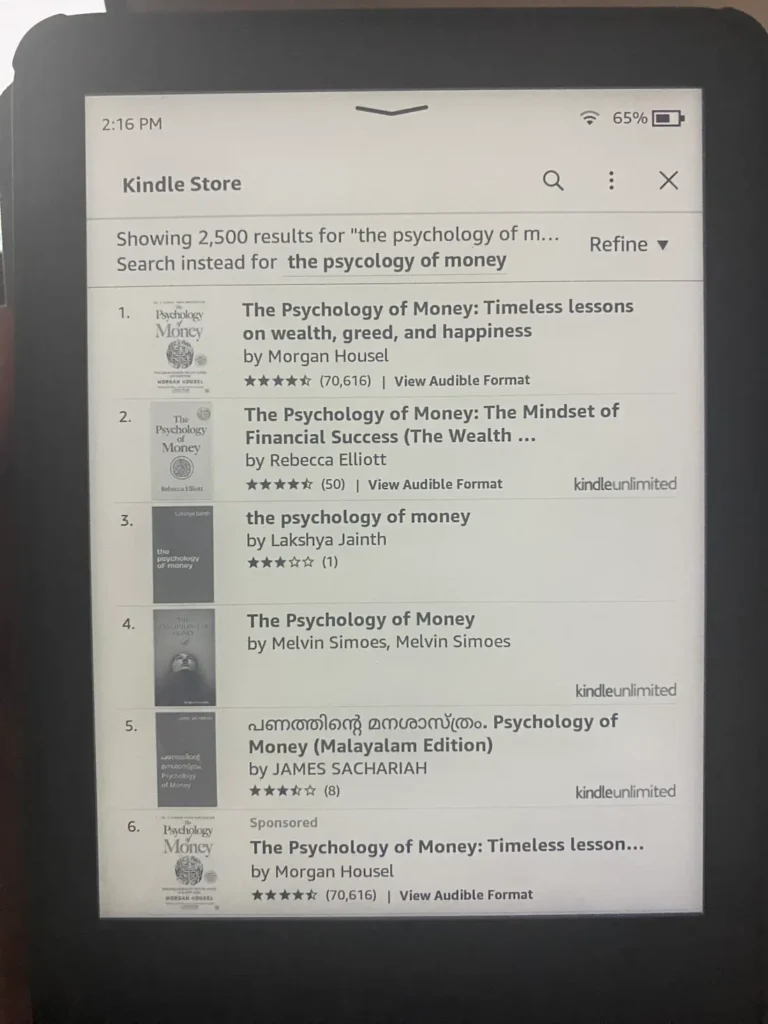
Step 2. After you have written the title of the book, you will find several adaptations, in different languages or audiobooks. Make sure not to choose the book in Audible format because it is only available on a tablet or phone, if you buy it from the Amazon website.
After you have chosen the book for Kindle, click on it.
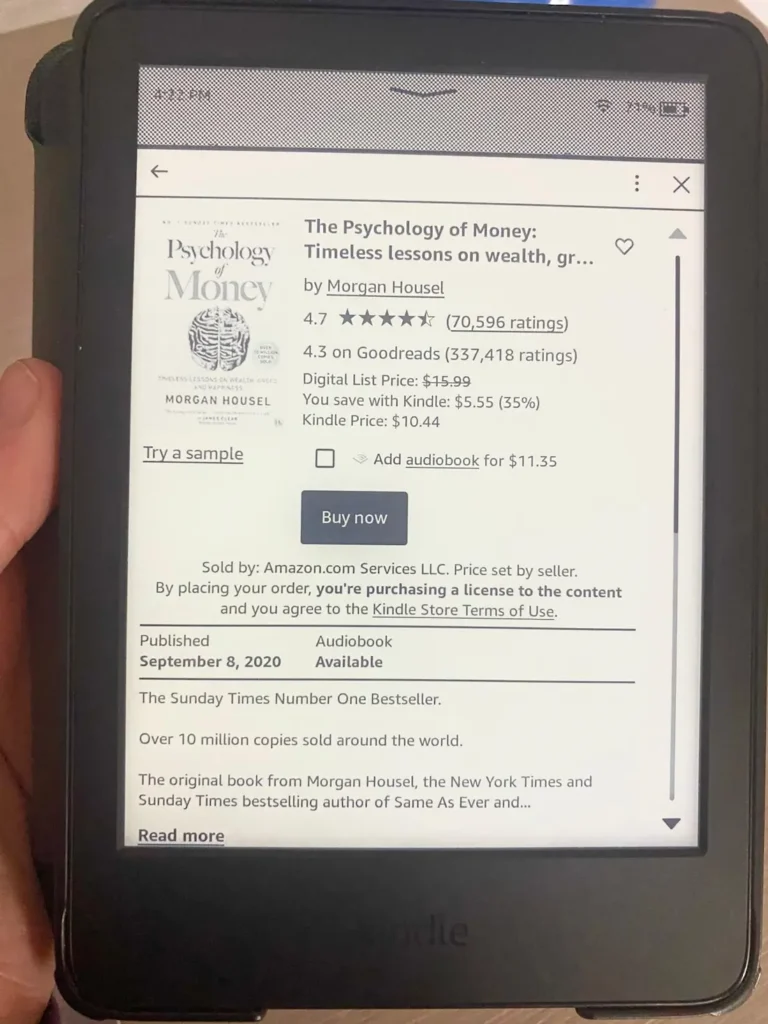
Step 3. Click the Buy Now button.
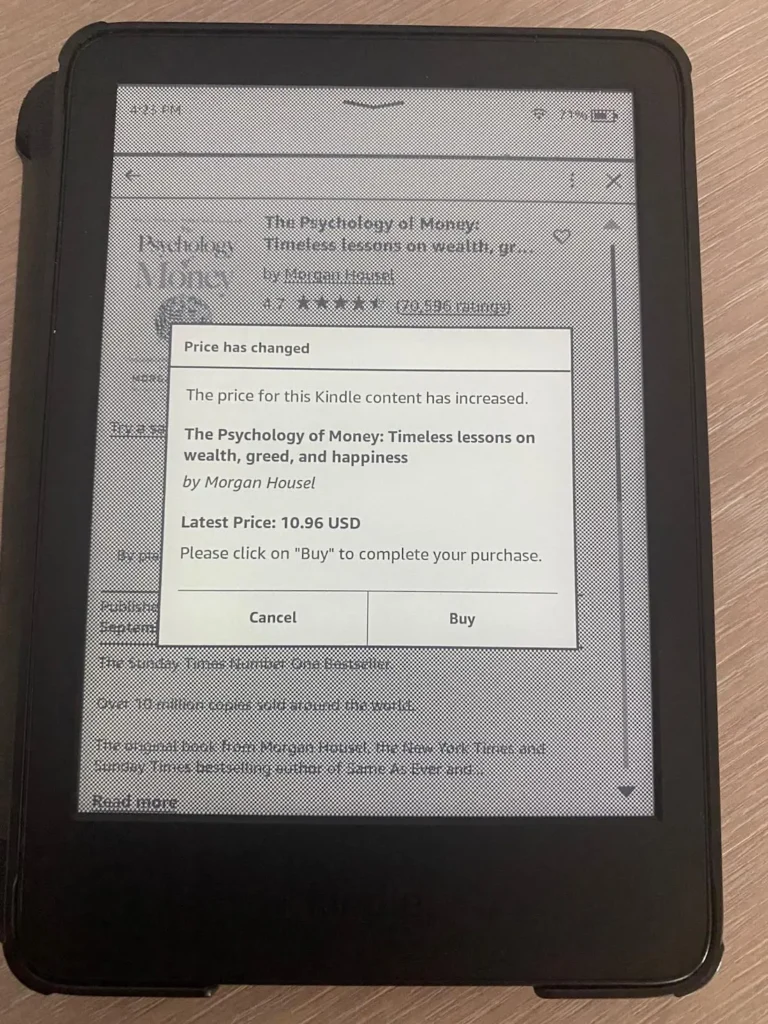
Step 4. Some books will show you this text because prices change. You press Buy, then you will have to enter your card details.
Download books from your phone using the Amazon website
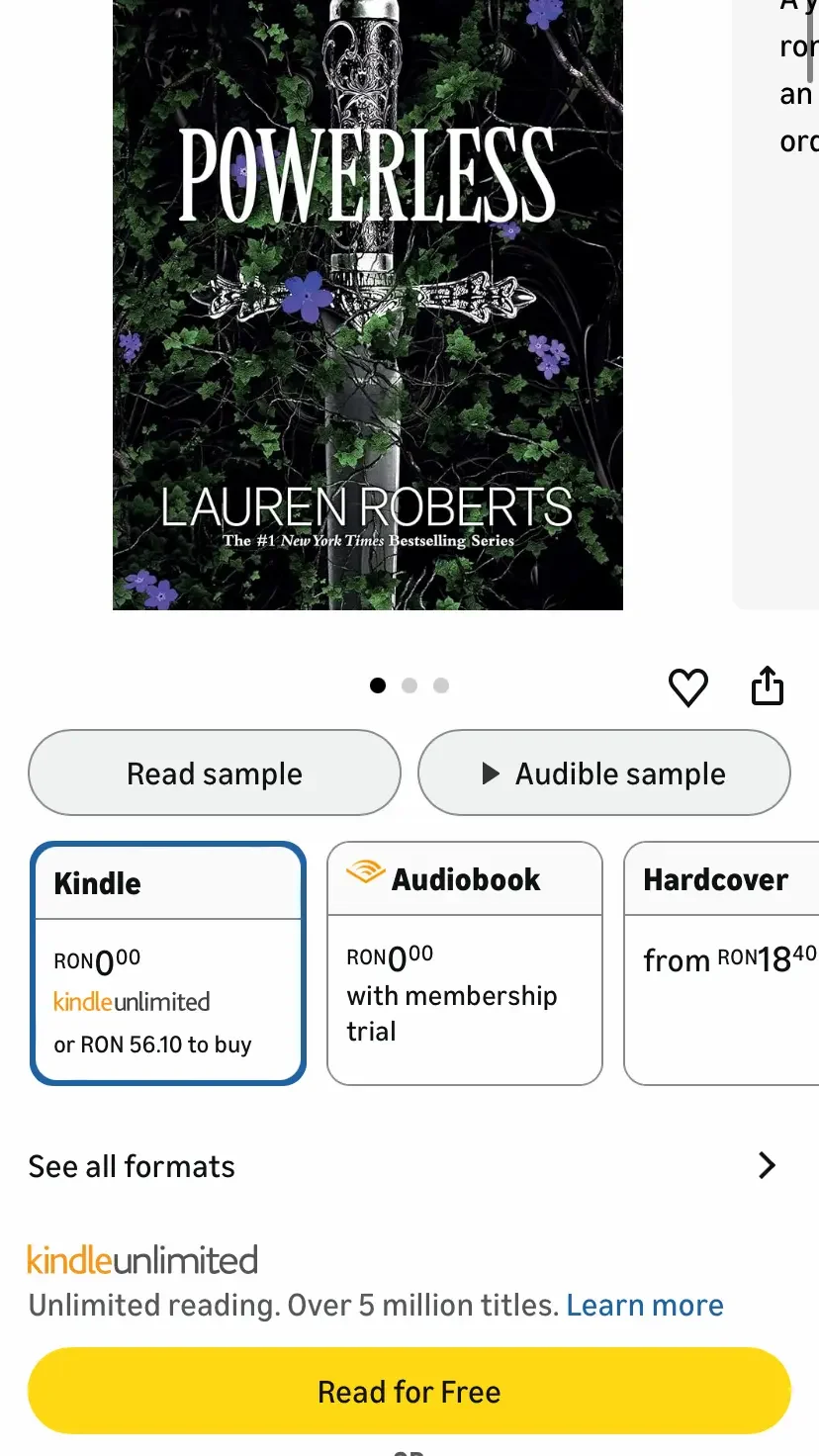
If you can’t buy directly from your Kindle, a much simpler option is to sign up for an Amazon account. Once you log in to the site on any device, you choose the book, purchase it, and it automatically appears on your Kindle.
I have to mention one thing, Amazon offers the possibility to download the Kindle app, which is available on any Android or IOS device. So, this means that you can buy the book on your phone, and if you have the app, you can read the book directly on it. Basically, the Amazon account is the same as the one on the Kindle, and the books will be read starting from the page you left off last time. The reading progress is the same.
So, all you have to do is create an Amazon account and go to Amazon.com. You choose the book for your Kindle and you can buy it.
Download PDFs for free and send them to your Kindle device
If the other two methods are not suitable for you, well, you can also read for free on Kindle, especially if you are a student and cannot afford to pay for books. With this method you can download PDFs in any language you want. All you have to do is search for the book you want on Google, along with the text free download/free books. You will see more searches, but I recommend downloading from https://www.scribd.com/Requires an account, but it is free.
This alternative can only be good if you can’t afford books, but you want to learn new things. If you can afford books, I recommend buying them or borrowing them from online libraries, to help authors get paid for their work. Regarding Scribd, this is a legal site, but you have to take into account one important aspect, namely, that there are people who upload copyrighted materials and books, which is not ethical.
And if you want to read books for free and legally/ethically, below I offer you a list of sites that make such books available.
- https://www.gutenberg.org/ You can download either PDF or Kindle-supported formats, then send them to your Kindle from your phone via Send to kindle .
- https://archive.org/
- https://www.loc.gov/collections/world-digital-library/
- https://standardebooks.org/about
- https://manybooks.net/
Convert PDFs in Calibre
If you have Calibre on your laptop or phone, you can convert a simple PDF to the formats supported by Kindle, namely EPUB, MOBI, AZW3, etc. You just need to know which format suits your device. Some older models had MOBI, but the new ones support EPUB. For example, I have a Kindle Basic, generation 11, from 2024. Basically a new generation, which supports EPUB, not MOBI.
For more information, I have prepared a step-by-step guide on How to convert a PDF on Calibre for Kindle formats.
After you’ve converted, you can send the book to your phone or directly from your laptop. To send to your phone, you have 2 options.
1. You can send the book from your phone to your Kindle using Send to kindle. Basically, you can upload the book to the website and it will automatically send to your Kindle, you just need to press Sync to synchronize the sending better. If you can’t, you can find the steps at the end of the article on how to convert a PDF to Kindle formats.
2. From your email address, you can send to your Kindle address. Then you need to tap Sync on your device to have the book appear in your Kindle library. So, to find your Kindle address, see the steps below.
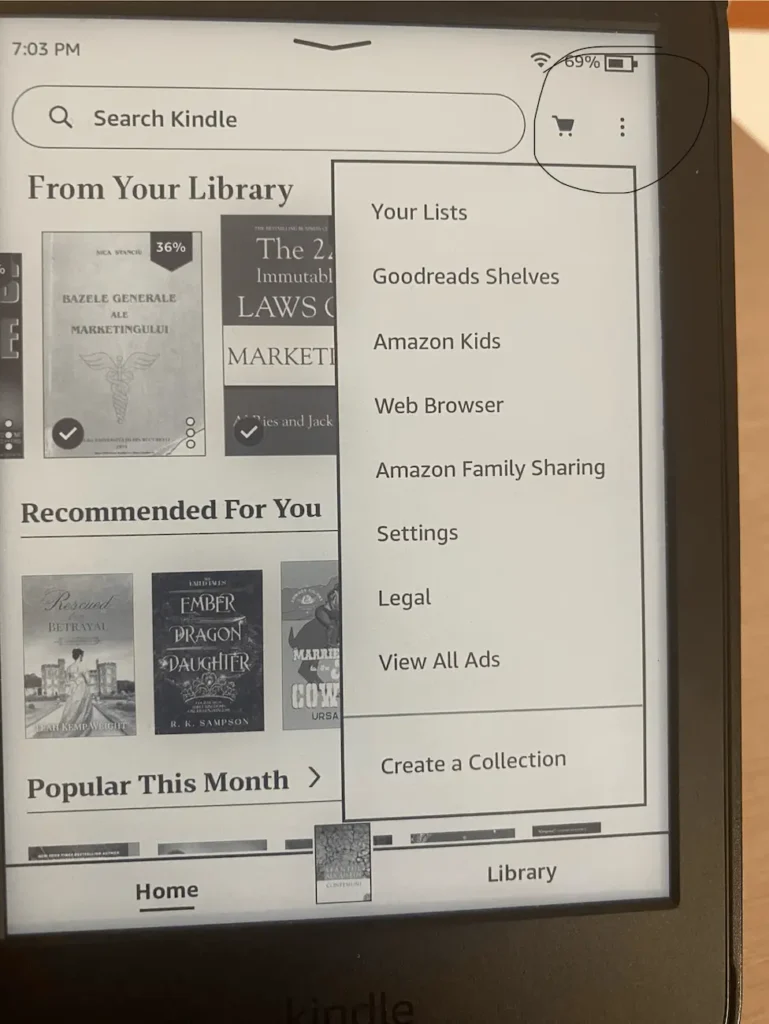
Step 1. Click on the three vertical dots on the right, then click on Settings.
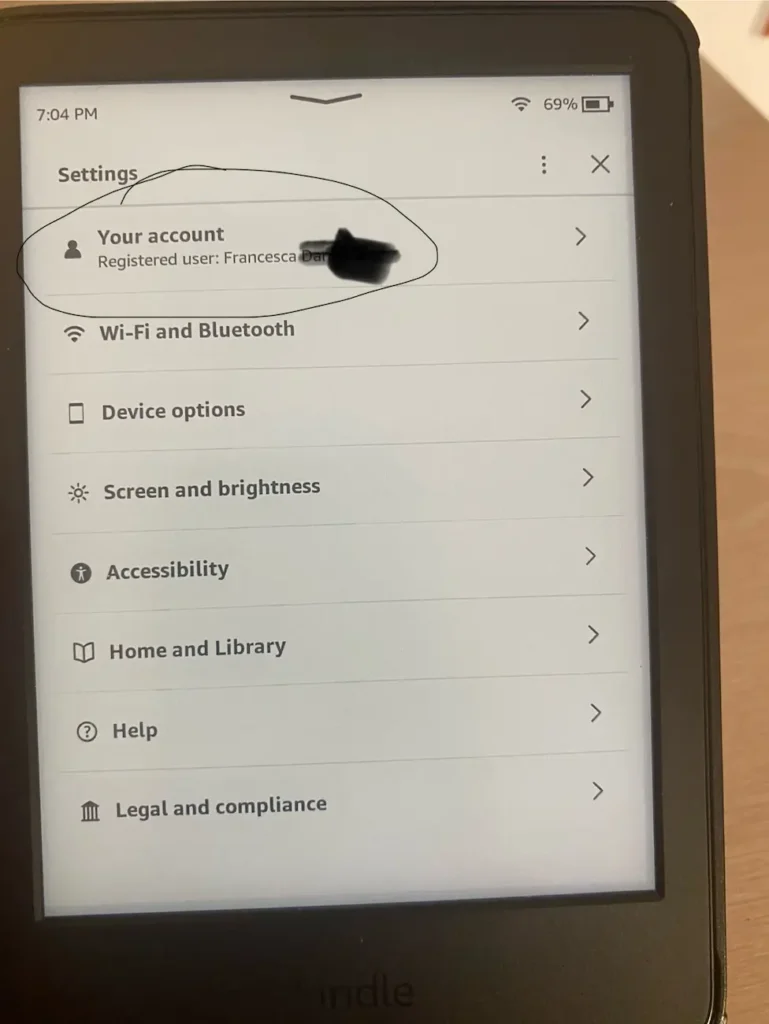
Step 2. Click on Your account.
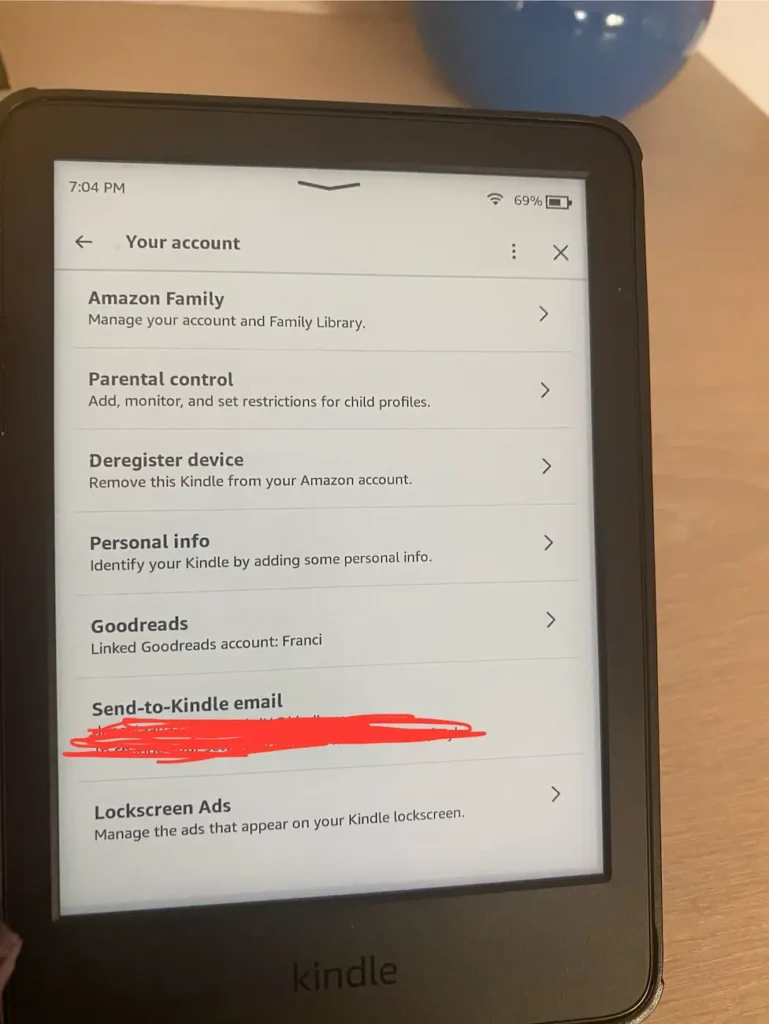
Step 3. Click on Send-to-Kindle email and you will see the email.
As such, from your phone you can send the book to this email address, and then Sync.
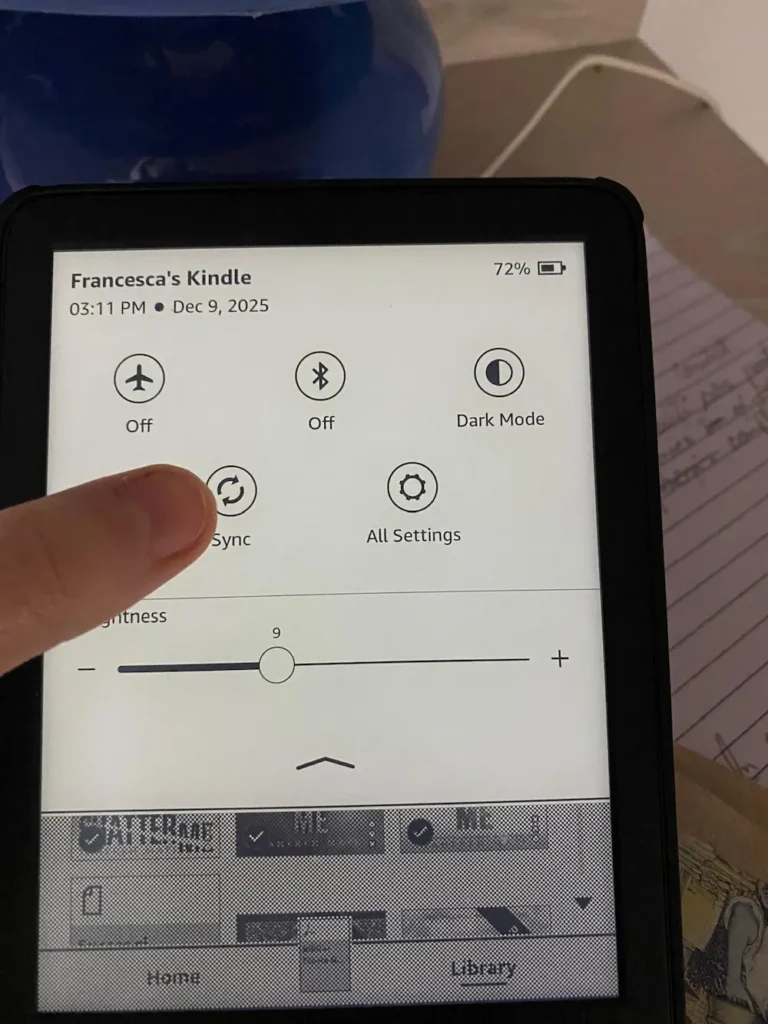
So, I hope this information was helpful to you. If you liked this article, leave a comment.